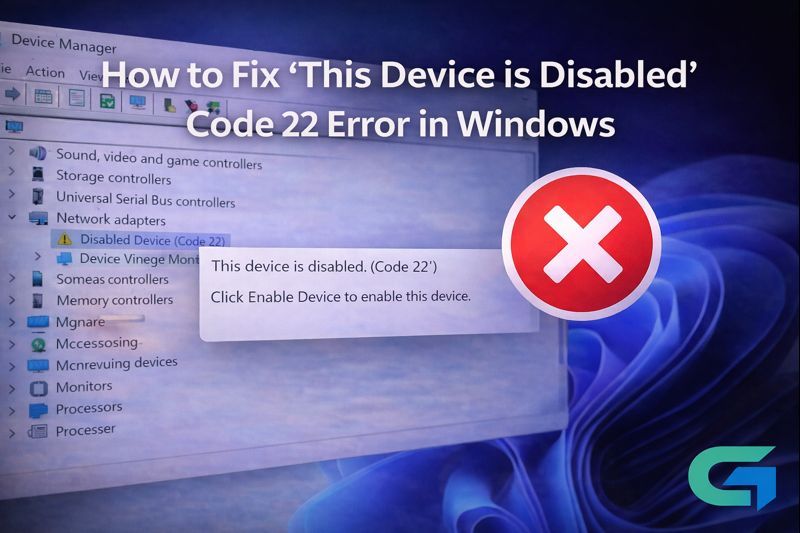
How to Fix ‘This Device is Disabled’ Code 22 Error in Windows
Encountering the ‘This Device is Disabled’ Code 22 error on a Windows device can be frustrating. This issue usually arises due to driver problems or hardware conflicts. Fortunately, there are several effective methods to resolve this error and get your hardware back to functioning normally.
Common Causes of Code 22 Error
Before diving into solutions, it’s essential to understand the common causes of the Code 22 error. This error typically indicates that the device has been disabled either manually or due to issues within the operating system. These issues can affect hardware components, such as printers, graphics cards, or network interfaces.
Step-by-Step Solutions
1. Restart Your Computer
Sometimes, a simple restart can resolve a wide range of issues, including the Code 22 error. Reboot your computer to refresh system settings and possibly restore functionality to the disabled device.
2. Replug the Hardware
Unplugging and reconnecting the hardware can also help. By doing this, you can reset the connection and allow Windows to recognize the device again.
3. Enable the Device through Device Manager
To enable the device, follow these steps:
- Open Device Manager using the Windows Search bar.
- Locate the disabled device, right-click on it, and select Enable.
4. Update the Device Driver
Outdated or incorrect drivers can cause hardware devices to malfunction. To update your device driver:
- In Device Manager, right-click the device.
- Select Update Driver and choose the option to search automatically for updated driver software.
5. Uninstall and Reinstall the Device Driver
If updating does not resolve the issue, uninstalling and then reinstalling the driver may help:
- Right-click the device in Device Manager and select Uninstall device.
- Restart your computer to allow Windows to reinstall the driver automatically.
6. Install Older Drivers
In some cases, the latest drivers may not be compatible with your device. You can revert to an earlier version of the driver:
- In Device Manager, right-click the device and select Properties.
- Navigate to the Driver tab and click on Roll Back Driver if the option is available.
7. Run the Hardware and Device Troubleshooter
Utilizing the built-in troubleshooter can quickly identify and fix issues:
- Press Windows + R to open the Run dialog.
- Type
msdt.exe -id DeviceDiagnosticand press Enter. - Follow the prompts to diagnose and fix the problem.
8. Check Device Functionality
After performing the above steps, check to see if your device is functioning correctly. If it continues to show the Code 22 error, further investigation may be needed.
9. Update Your Operating System
An outdated OS can lead to hardware compatibility issues. To check for updates:
- Go to Settings > Update & Security.
- Click Check for updates and install any available updates.
10. Perform a System Restore
If the issue began recently, restoring your system to a previous point might help:
- Type “System Restore” in the Windows Search box and select the relevant option.
- Follow the prompts to choose a restore point before the issue began.
11. Update Your BIOS
If none of the above methods work, consider updating your BIOS. A BIOS update can resolve compatibility issues. However, proceed with caution and consult the manufacturer’s guidelines for your specific hardware.
Read also : Disable Recent Searches on Windows 11: A Simple Guide
Conclusion
Fixing the ‘This Device is Disabled’ Code 22 error in Windows may seem daunting, but by following these steps, you can effectively troubleshoot and rectify the problem. Whether it involves updating drivers, using the Device Manager, or performing a system restore, numerous solutions are available to restore your device’s functionality.
FAQ
1. What is the Code 22 error in Windows?
The Code 22 error indicates that a device is disabled, often due to driver issues or manual changes.
2. How can I enable a disabled device?
You can enable a disabled device in Device Manager by right-clicking on it and selecting the “Enable” option.
3. What should I do if updating the driver doesn’t work?
If updating doesn’t resolve the issue, try uninstalling and reinstalling the driver, or reverting to an older version.
4. How can I run the hardware troubleshooter?
You can run the hardware troubleshooter by typing msdt.exe -id DeviceDiagnostic into the Run dialog.
5. Should I update my operating system?
Yes, updating your operating system can help resolve compatibility issues that may cause the Code 22 error.
6. What is the safest way to update BIOS?
Consult your hardware manufacturer’s guidelines for updating the BIOS to ensure safety and compatibility.
7. Can a system restore fix the Code 22 error?
Yes, performing a system restore to a point before the issue arose can often resolve the Code 22 error.