
In today’s fast-paced digital landscape, being able to troubleshoot issues effectively is crucial. When encountering problems like BSOD (Blue Screen of Death) errors, you may be asked for your startup and shutdown history. Understanding how to access this information can help in diagnosing technical problems swiftly. Here’s how to check your Startup and Shutdown History in Windows 11, using two robust methods: Event Viewer and Command Prompt.

Startup and Shutdown History in Windows 11 via Event Viewer
One of the most efficient ways to track your startup and shutdown history in Windows 11 is through the built-in Event Viewer utility. This tool logs various system events and can provide detailed insights into your system’s operations.
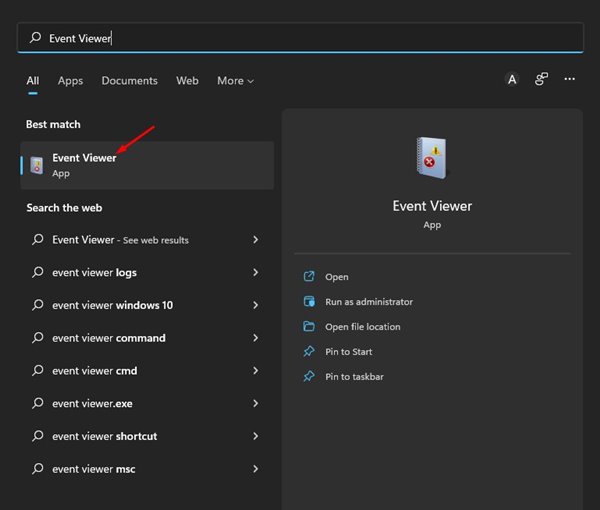
Open Event Viewer: Start by typing “Event Viewer” into the Windows Search bar and select it from the results.

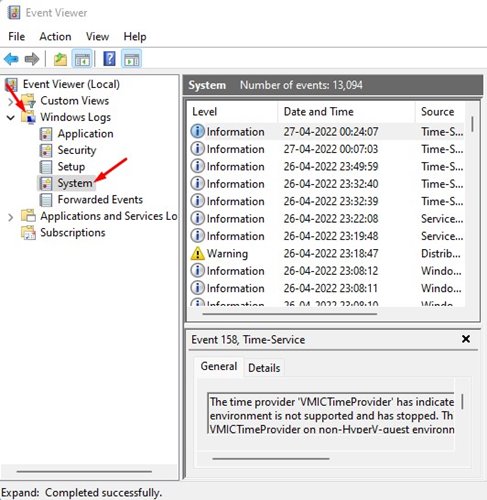
Access Windows Logs: Navigate to the section labeled Windows Logs on the left pane, then select System.

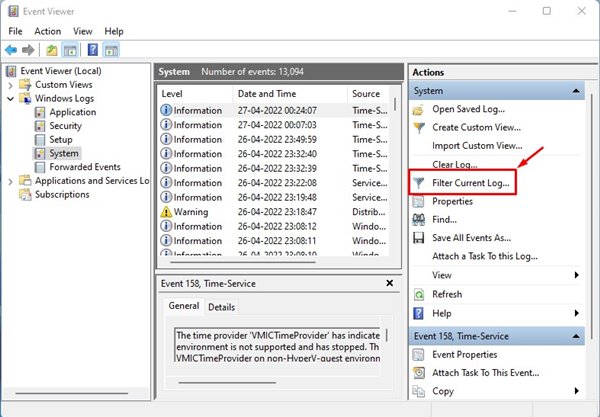
Filter Current Log: On the right pane, locate and double-click Filter Current Log.

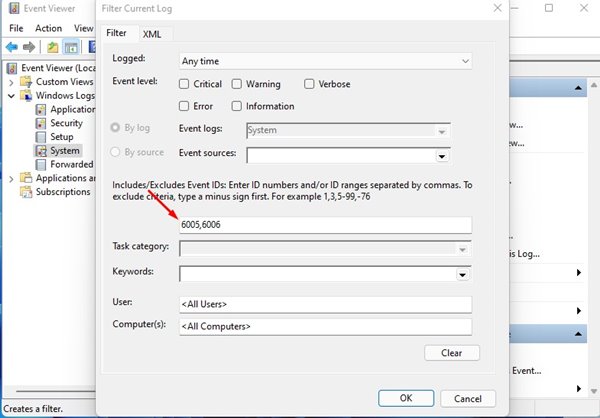
Enter Event IDs: To view your Startup and Shutdown logs, input the specific Event IDs: 6005 for startup events and 6006 for shutdown events. After entering them, click Ok.

- ID 6005: Indicates the time when Windows 11 was started.
- ID 6006: Marks when Windows 11 was shut down.
View History: Upon completion, you will be presented with a comprehensive list of your accumulated Startup and Shutdown History in Windows 11.


Other Event IDs to Consider
In addition to the core IDs (6005 and 6006), you might want to explore a few other related Event IDs:
- 41: This indicates that the device didn’t restart properly, often due to a crash or loss of power.
- 1074: Triggered when a manual shutdown or restart is initiated, this event might appear if a restart occurs due to updates.
- 6008: This signifies that the previous shutdown was unexpected, often paired with Event ID 41.
Startup and Shutdown History in Windows 11 via Command Prompt
If you prefer working with command line tools, checking your Startup and Shutdown History in Windows 11 via Command Prompt is another great option. This method allows you to access logs without navigating through a graphical interface.
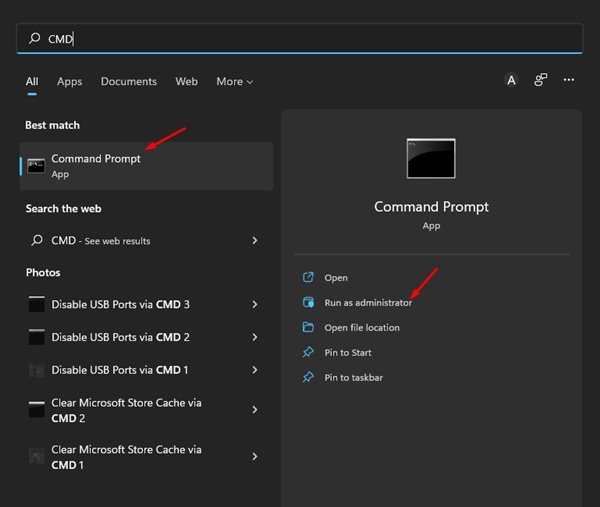
Open Command Prompt: Type “Command Prompt” in Windows Search. Right-click on it and select Run as administrator.

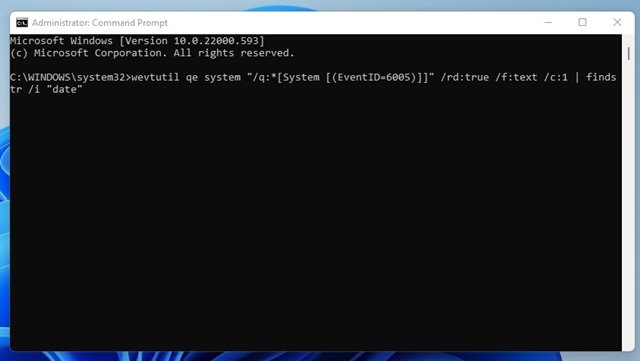
Execute Startup Command: For checking startup history, input the following command and press Enter:shell
wevtutil qe system “/q:*[System [(EventID=6005)]]” /rd:true /f:text /c:1 | findstr /i “date”
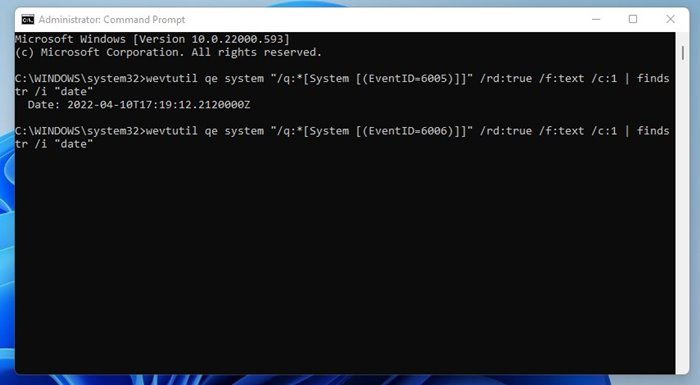
Execute Shutdown Command: To view shutdown history, use this command:shell
wevtutil qe system “/q:*[System [(EventID=6006)]]” /rd:true /f:text /c:1 | findstr /i “date”
The Command Prompt provides a straightforward way to pull just what you need without the overhead of a graphical user interface.
Read also : Run Older Programs in Compatibility Mode on Windows 11
Accessing your Startup and Shutdown History in Windows 11 can significantly aid in troubleshooting and maintaining your system’s health. Through the Event Viewer and Command Prompt, you’re equipped to gather crucial information whenever necessary. These methods not only streamline problem-solving but can also enhance the overall management of your Windows environment. Whether you opt for the graphical interface of the Event Viewer or the efficiency of the Command Prompt, having this knowledge in your toolkit is invaluable. If you have further questions on checking your startup and shutdown history, feel free to ask!




