How to Turn Off Hard Disk After Idle Time in Windows 11
If your computer uses both an SSD and an HDD, knowing how to turn off hard disk after idle time in Windows 11 can help reduce power consumption and improve battery life. Windows 11 includes built-in options that let you automatically spin down the hard drive when it’s not being used no extra software required.
Below are two simple methods to configure this setting.
Turn Off Hard Disk After Idle Time Using Power Options
The easiest way to manage hard disk idle behavior is through Windows 11’s advanced power settings.
Steps to turn off HDD after idle time:
- Press Windows + R to open the Run dialog
- Type powercfg.cpl and press Enter
- In Power Options, click Change plan settings
- Select Change advanced power settings
- Expand the Hard disk section
- Expand Turn off hard disk after
- Set the desired time (in minutes) for:
- On battery
- Plugged in
- Click Apply, then OK
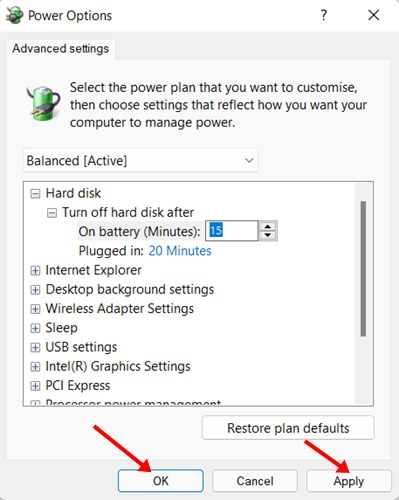
Once set, Windows will automatically turn off the hard disk after the specified idle period.
Turn Off Hard Disk After Idle Time Using Command Prompt
Advanced users can also control hard disk power settings using Command Prompt.
Steps using Command Prompt:
- Open Command Prompt as administrator
- Enter the following command and press Enter:
powercfg -change -disk-timeout-dc 10Replace 10 with the number of minutes you want for battery mode. - Enter the next command:
powercfg -change -disk-timeout-ac 10Replace 10 with your preferred idle time for plugged-in mode.
After running these commands, restart your computer to ensure the changes take effect.
When Should You Turn Off a Hard Disk?
Turning off an HDD after idle time is useful if:
- You want to save battery on a laptop
- The hard drive is used only occasionally
- You want to reduce noise and heat
However, very short idle times may cause frequent spin-ups, which could affect long-term drive health.
SSD vs HDD Considerations
This setting mainly affects traditional hard disk drives. SSDs don’t spin and are not impacted in the same way, so the feature is most beneficial on systems with secondary HDD storage.
Read also : How to Hide Files in Windows 11 Without Any Software
Knowing how to turn off hard disk after idle time in Windows 11 helps you optimize power usage and extend battery life, especially on laptops with mixed storage. Whether you use Power Options or Command Prompt, Windows gives you full control over when your hard drive powers down.
FAQ
Can I turn off only the HDD and not the SSD?
Yes, this setting mainly affects traditional hard drives, not SSDs.
What does “Turn off hard disk after” mean?
It defines how long the HDD stays idle before powering down.
Is this setting safe for hard drives?
Yes, but avoid setting extremely short idle times to reduce wear.
Does this improve battery life?
Yes, especially on laptops with secondary hard drives.
Do I need third-party software?
No, Windows 11 includes built-in tools for this feature.
Why doesn’t my hard drive turn off?
Background activity or indexing may prevent it from going idle.
Should I restart after changing the settings?
Yes, restarting ensures the changes are applied correctly.