
Learn how to stop random USB connect/disconnect noises in Windows with helpful steps and solutions to troubleshoot and fix the issue.
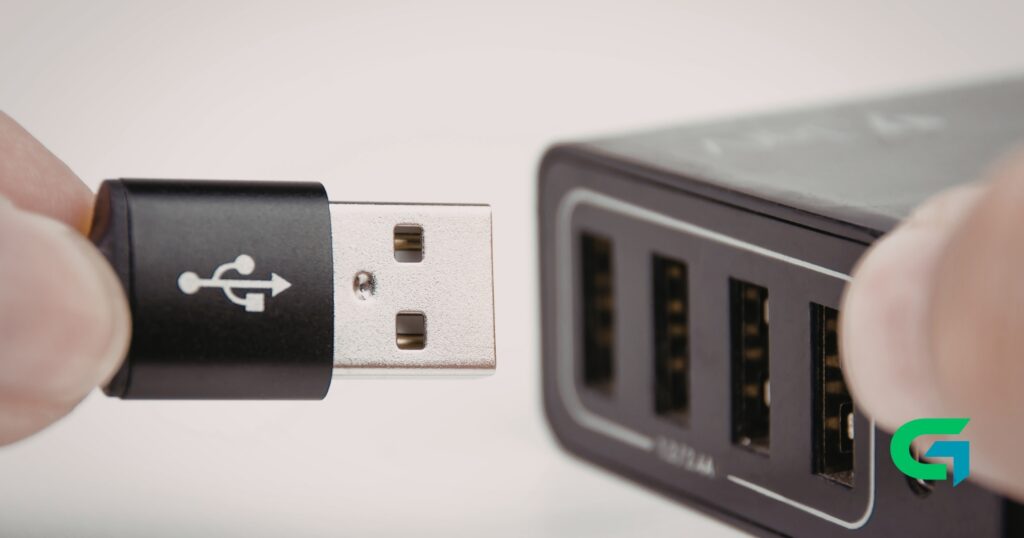
The annoying sound of USB connect and disconnect notifications can be quite disruptive, especially when they occur without any apparent reason. When you hear these random noises, it might be a sign of underlying issues with your USB devices or their drivers. Fortunately, there are several methods to stop random USB connect/disconnect noises in Windows. In this guide, we will walk you through the solutions step-by-step to help you regain peace and quiet in your computing experience.
How to Stop Random USB Connect/Disconnect Noises
To effectively stop random USB connect/disconnect noises, follow the structured approach outlined below. Each method addresses potential causes of the problem, ranging from simple to more technical solutions.
Requirements or Prerequisites
Before diving into the methods, ensure that you have the following:
- A Windows computer
- USB devices (e.g., mouse, keyboard, external hard drives)
- Administrative access to your computer
- Optional: USBDeview software for advanced troubleshooting
How to Stop Random USB Connect/Disconnect Noises
1. Reconnect the USB Devices
Start by unplugging all USB devices connected to your computer, including external hard drives, USB flash drives, and peripherals. Wait a few moments, then reconnect them one at a time:
- Disconnect all USB devices.
- Reconnect each device back to the computer.
Sometimes, simply reattaching the devices resolves connection issues and stabilizes the drivers responsible for triggering the sounds.
2. Check for a Faulty USB Port
A faulty USB port can lead to intermittent connections, which trigger those annoying noises. Here’s how to check:
- Inspect the USB ports visually for any debris or damage.
- Connect your USB device to a different port and observe if the noise persists.
If you find that a specific port is malfunctioning, you may need to repair or replace it.
3. Avoid Using USB Hubs
Using USB hubs can sometimes result in unreliable connections:
- Disconnect any USB hubs you have connected.
- Plug your devices directly into the USB ports on the motherboard.
If the noise stops, it may indicate that the hub was the issue.
4. Device Manager Troubleshooting
Issues with USB drivers can cause connectivity problems:
- Open the Device Manager by searching for it in the Start menu.
- Expand the section for USB devices and look for any devices with a yellow exclamation mark.
- If found, right-click on the device and select Update Driver or Uninstall.
Restart your computer if you make changes to drivers.
5. Use USBDeview to Track Devices
The USBDeview tool offers in-depth information about USB devices connected to your PC:
- Download and install USBDeview.
- Launch the application to see a list of USB devices.
- Look for unusual log entries in the ‘Last Plug/Unplug’ date column.
Uninstall any problematic devices to help resolve connection issues.
6. Turn Off USB Notification Sounds
If troubleshooting does not rectify the problem, you can mute the USB notification sounds:
- Right-click on the Speaker icon in the taskbar.
- Select Sounds and look for Program Events.
- Find Device Connect and Device Disconnect, and set both to None.
This action will stop the sound alerts, but it won’t address the root cause.
7. Disable USB Selective Suspend
Disabling the USB Selective Suspend feature can also help stabilize connections:
- Open Control Panel and navigate to Power Options.
- Click on Change Plan Settings for your active plan.
- Select Change Advanced Power Settings.
- Expand USB settings and set USB selective suspend setting to Disabled.
After making these changes, restart your computer for the settings to take effect.
Common Problems and Fixes
Problem: Devices still make noise after implementing fixes.
Solution: Reassess each USB device’s functionality and ensure all drivers are up to date.
Problem: Specific USB device recognition issues.
Solution: Uninstall and reinstall the problematic device driver through Device Manager.
Tips, Best Practices, and Warnings
- Always safely eject USB devices to prevent corruption.
- Regularly update your drivers to reduce malfunctioning.
- Avoid overloading USB hubs as they can get damaged easily.
- Consider using a powered USB hub for devices requiring higher power.
Read also : How to Create a Guest Account in Windows 11 Home
In conclusion, if you’re looking to stop random USB connect/disconnect noises in Windows, various solutions can help you achieve a quieter environment. By following the step-by-step methods outlined in this guide, you can troubleshoot potential issues effectively. Ensure you keep your drivers updated and periodically check your USB connections to maintain a smooth computing experience. If problems persist, consider seeking professional help to diagnose any physical hardware issues. If you have any doubts, don’t hesitate to consult us for further assistance!




