How to Remove Gmail Account on Android
Knowing how to remove a Gmail account on Android is useful if you’re switching to a new Google account, running out of storage, or preparing to sell your phone. Android offers multiple ways to disconnect a Gmail account, depending on whether you want to remove it locally, sign out remotely, or simply stop receiving emails.
Before proceeding, it’s important to understand what happens when a Google account is removed from your device.
Things to Know Before Removing a Gmail Account
Removing a Gmail account from Android has broader effects than just email access. Keep the following points in mind:
- Your emails are not deleted; they remain stored in your account online
- You’ll lose access to Google services like Play Store, YouTube, and Drive for that account
- Photos backed up to Google Photos will no longer be accessible on the device
- Calendar events linked to the account won’t sync anymore
If you rely on other Google services, consider disabling Gmail sync instead of removing the entire account.
How to Remove a Gmail Account on Android Phone
To remove Gmail from Android, you must remove the associated Google account from system settings.
Steps to remove a Gmail account:
- Open Settings
- Scroll down and tap Users & accounts
- Select Google
- Choose the Google/Gmail account you want to remove
- Tap the three-dot menu in the top-right corner
- Select Remove account
- Confirm using your PIN, password, or pattern
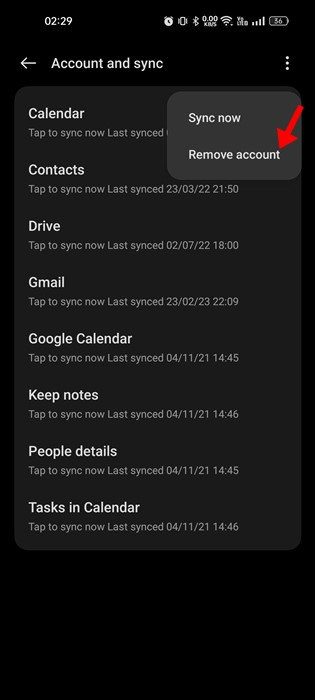
The Gmail account will be removed from your Android device immediately.
How to Remove a Gmail Account on Android Using a PC
If you believe your Google account is signed in on a phone you don’t have access to, you can sign out remotely using a computer.
Steps to sign out remotely:
- Open a web browser and go to your Google account security page
- Sign in with the Gmail account you want to manage
- Open the Security section
- Scroll to Your devices
- Select the device you want to remove
- Click Sign out
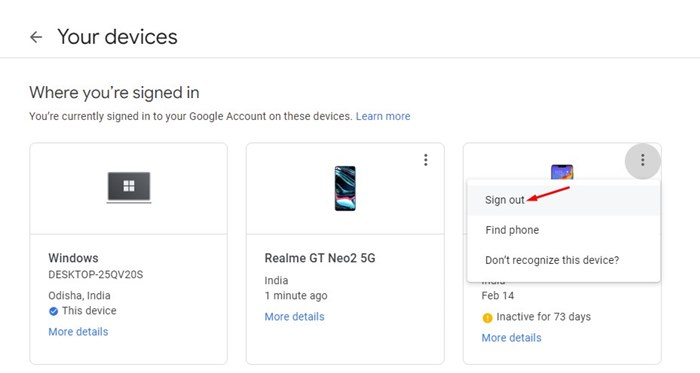
This instantly removes access to your account on that device.
Disable Gmail Sync Instead of Removing the Account
If you want to keep using Google services but stop receiving emails from a specific Gmail account, disabling sync is a better option.
Steps to disable Gmail sync:
- Open the Gmail app
- Tap the menu icon in the top-left corner
- Select Settings
- Choose the Gmail account
- Scroll down and uncheck Sync Gmail
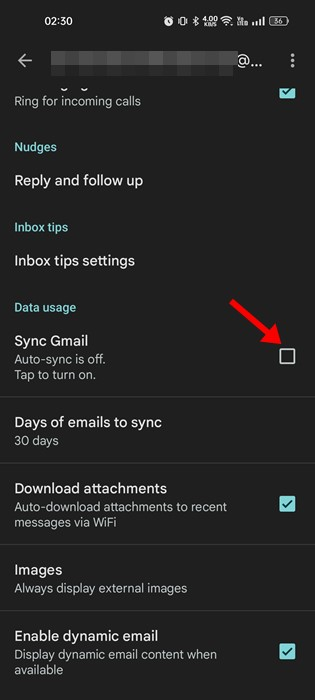
This stops new emails from syncing without removing the account from your phone.
Factory Reset as a Last Resort
A factory reset removes all data, including Google and Gmail accounts. This option is best if you’re selling or giving away your phone.
Steps to factory reset:
- Open Settings
- Go to System settings
- Tap Back up and reset
- Select Reset phone
- Choose Reset all settings
- Confirm with your PIN or password
Make sure you back up important data before resetting.
Read also : How to Schedule Calls on Android Using Simple Apps
Understanding how to remove a Gmail account on Android gives you full control over your device and data. Whether you remove the account directly, sign out remotely, disable email syncing, or reset your phone, Android offers flexible options for every situation. Choose the method that best fits your needs to avoid losing access to important services.

FAQ
Does removing a Gmail account delete my emails?
No, your emails remain stored in your Google account online.
Can I remove Gmail without deleting my Google account?
You can’t remove Gmail alone, but you can disable Gmail sync.
Will removing a Gmail account affect the Play Store?
Yes, you’ll lose Play Store access for that specific Google account.
Can I remove my Gmail account remotely?
Yes, you can sign out from devices using your Google account security settings.
What happens to Google Photos after removal?
Photos stored in Google Photos won’t be accessible on that device.
Is factory reset necessary to remove Gmail?
No, it’s only recommended if you can’t remove the account normally or plan to sell the phone.
Can I add the Gmail account back later?
Yes, you can re-add the Google account at any time through Settings.