Learn how to effectively reduce PDF file size on Android with these simple, step-by-step instructions to optimize your files for easier sharing.
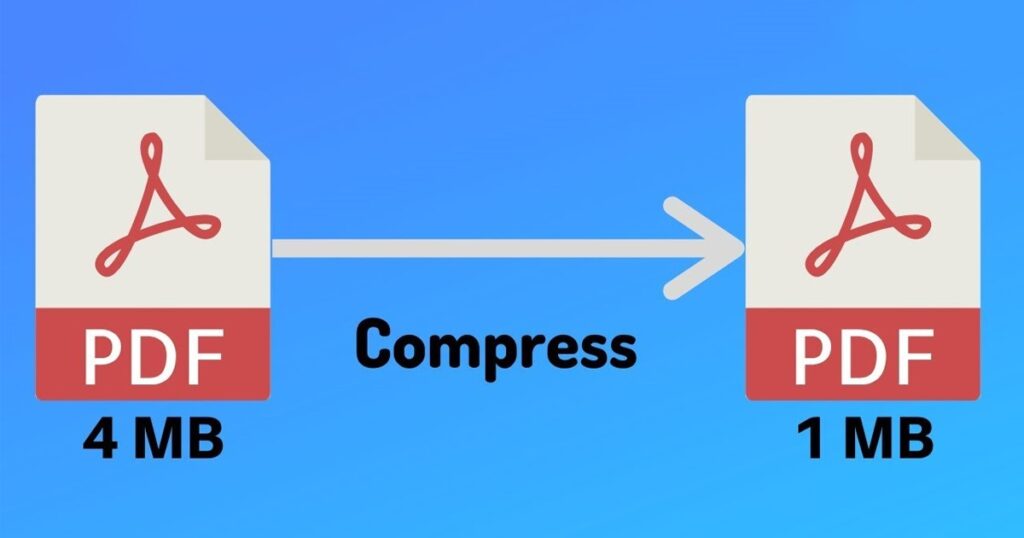
Are you struggling with large PDF files on your Android device? Large PDF documents can be cumbersome, making sharing and storage a hassle. Fortunately, reducing the PDF file size on Android is easier than you might think. In this guide, we’ll walk you through simple methods to compress PDF files directly from your device.
Reduce PDF File Size on Android
To effectively reduce PDF file size on Android, you can utilize both native applications and third-party apps available on the Google Play Store. By following the steps outlined in this guide, you will have various options at your disposal for compressing PDF files to a manageable size.
Requirements or Prerequisites
Before you begin, ensure you have the following:
- An Android device with internet access.
- A PDF document that needs size reduction.
- Sufficient storage space available on your device for temporary files during the compression process.
- If using a third-party app, installation from the Google Play Store may be required.
Reduce PDF File Size on Android
Now that you’re set up, let’s dive into the step-by-step instructions for reducing PDF file size on Android.
Method 1: Using Google Drive
- Upload PDF to Google Drive: Open the Google Drive app and upload the PDF file you wish to compress.
- Open PDF File: Tap on the PDF file to open it in Google Drive’s preview mode.
- Download as a Compressed File: Tap the three-dot menu or share icon, then select the option that reads “Print.” From the print preview, choose “Save as PDF” from the dropdown to compile a smaller version.
- Save it Locally: Name your new PDF and save it in a desired location on your device.
Method 2: Using Third-Party Apps
If you prefer a dedicated app for reducing PDF file size on Android, follow these steps:
- Download a PDF Compression App: Visit the Google Play Store and search for “PDF compressor.” Popular options include PDF Compressor, Adobe Acrobat Reader, or Smallpdf.
- Open the App: After installation, open the app.
- Upload the PDF File: Tap on “Choose File” or “Select PDF” to upload the document you want to compress.
- Select Compression Settings: Different apps may offer various compression levels. Choose one based on your needs (high compression may affect quality).
- Start Compression: Tap the “Compress” or “Start” button to begin the process.
- Save the Compressed File: Once the compression is complete, ensure to save the new PDF file back to your device.
Reduce PDF File Size on Android
Even with the best methods, you may encounter some common problems when trying to reduce PDF file size. Here’s how to fix these issues:
Common Problems and Fixes
- Quality Loss: If the quality of your PDF file decreases excessively, try using less aggressive compression settings or choose a different app that prioritizes quality.
- File Not Compressing: Ensure the document is not overly simple or small in size, as some apps may not provide noticeable compression for such files.
- App Crashes: If your chosen app crashes, make sure it’s up-to-date or try reinstalling the app from the Play Store.
Tips, Best Practices, and Warnings
- Always keep a backup: Before compressing, ensure you have a backup of the original PDF in case the compression results are unsatisfactory.
- Check file before sending: After compression, review the PDF to ensure the content is intact and readable.
- Internet connection: Some apps may require an active internet connection to function optimally, especially cloud-based solutions.
Read also : How to Fix Alarm Volume Too Low on Android
In conclusion, knowing how to reduce PDF file size on Android can make file management, sharing, and storage much simpler. By following the methods outlined above—whether utilizing Google Drive or third-party apps you can compress your PDFs efficiently and easily. Always remember to check the result for quality and content integrity after compression to avoid any potential issues.