Summary
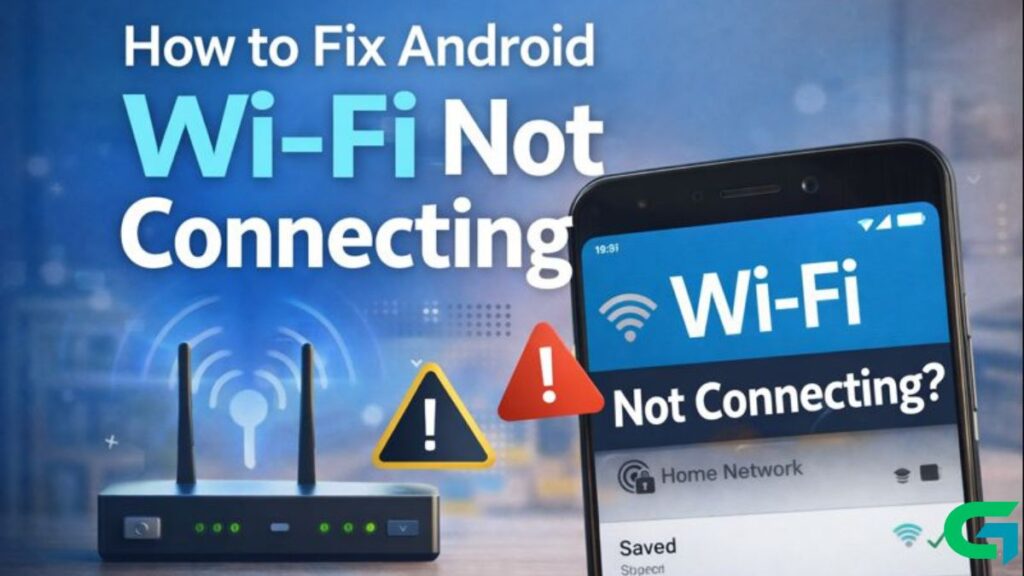
How to Fix Android Wi-Fi Not Connecting
Wi-Fi connection issues are among the most common problems Android users face. If your Android phone is not connecting to Wi-Fi, keeps disconnecting, or shows “Saved, secured” without internet access, don’t worry. In most cases, the problem can be fixed with simple troubleshooting steps.
In this guide, we’ll walk you through proven solutions to fix Android Wi-Fi not connecting issues.
1. Restart Your Phone and Router
Before trying anything advanced, start with the basics.
- Restart your Android phone
- Turn off your Wi-Fi router, wait 30 seconds, then turn it back on
This clears temporary glitches and often fixes the problem immediately.
2. Turn Wi-Fi Off and On
Sometimes the Wi-Fi module just needs a reset.
- Go to Settings → Network & Internet
- Turn Wi-Fi OFF
- Wait 10 seconds
- Turn Wi-Fi ON again
Try reconnecting to your network.
3. Forget and Reconnect to the Wi-Fi Network
If your phone connects but shows “No internet” or fails to authenticate, forget the network.
- Open Settings → Wi-Fi
- Tap your Wi-Fi network
- Select Forget
- Restart your phone
- Reconnect and re-enter the Wi-Fi password
⚠️ Make sure the password is correct (Wi-Fi passwords are case-sensitive).
4. Check Airplane Mode
Airplane Mode disables all wireless connections.
- Go to Quick Settings
- Make sure Airplane Mode is OFF
Even if mobile data works, double-check this setting.
5. Disable Wi-Fi Power Saving Mode
Some Android devices disable Wi-Fi in the background to save battery.
- Go to Settings → Battery
- Open Battery Optimization
- Find Wi-Fi or Network Services
- Set it to Not Optimized
This prevents Wi-Fi from disconnecting when the screen is off.
6. Reset Network Settings (Very Effective)
If none of the above worked, reset your network settings.
⚠️ This will remove:
- Wi-Fi networks
- Bluetooth connections
- Mobile data settings
Steps:
- Go to Settings → System
- Tap Reset options
- Select Reset Wi-Fi, mobile & Bluetooth
- Confirm the reset
After restarting, reconnect to Wi-Fi.
7. Check Date & Time Settings
Incorrect date and time can cause authentication problems.
- Go to Settings → Date & Time
- Enable:
- Automatic date & time
- Automatic time zone
Then try reconnecting.
8. Update Your Android System
Outdated software can cause Wi-Fi bugs.
- Go to Settings → Software Update
- Check for updates
- Install any available updates
System updates often fix network-related issues.
9. Check Router Settings
If Wi-Fi works on other devices but not on your phone:
- Restart the router
- Change Wi-Fi security to WPA2-PSK
- Disable MAC address filtering
- Try switching between 2.4GHz and 5GHz bands
Some older Android phones have trouble with certain router configurations.
10. Boot Android in Safe Mode
Safe Mode disables third-party apps.
- Press and hold the Power button
- Tap and hold Power Off
- Select Safe Mode
- Test Wi-Fi connection
If Wi-Fi works in Safe Mode, a third-party app is causing the issue. Remove recently installed apps.
11. Factory Reset (Last Resort)
Only do this if nothing else works.
⚠️ Back up your data first.
- Go to Settings → System → Reset
- Choose Factory data reset
- Confirm and reset
This will restore your phone to its original state.
Common Android Wi-Fi Problems Explained
- Connected but no internet → Router or DNS issue
- Saved, secured but not connected → Wrong password or IP conflict
- Wi-Fi disconnects frequently → Battery optimization or signal interference
Most Android Wi-Fi connection problems are software-related and easy to fix. Start with simple steps like restarting your device and forgetting the network, then move on to advanced solutions if needed.
If this guide helped you fix your Wi-Fi issue, consider bookmarking GOATPG for more Android and Windows troubleshooting guides.