Learn how to fix Android keyboard not showing issue effectively with this step-by-step guide to regain access to your keyboard.
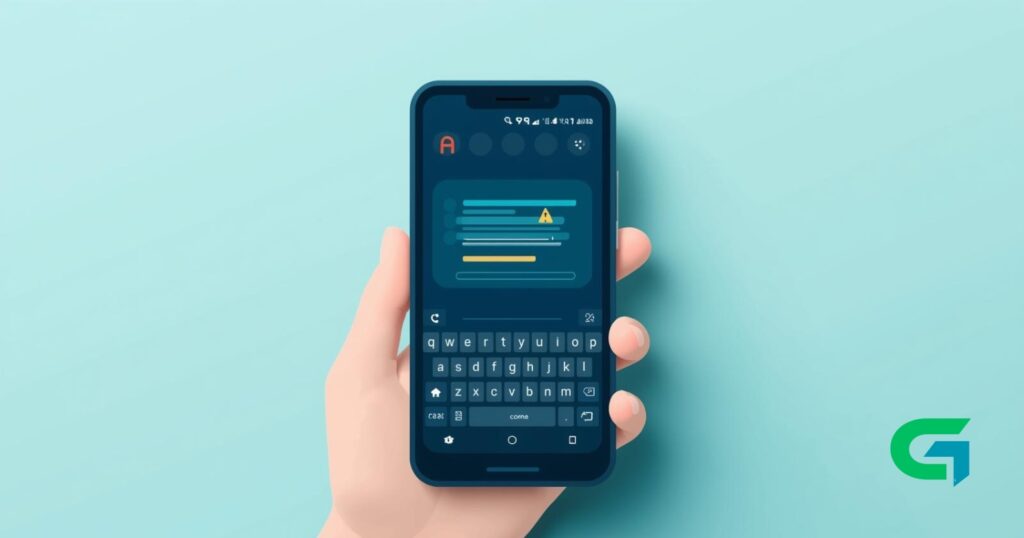
Have you ever encountered the frustrating situation where your Android keyboard refuses to appear? This common problem can disrupt your tasks and make communication difficult. Fortunately, there are effective solutions to fix this issue. In this guide, we will walk you through various methods to resolve the Android keyboard not showing issue so you can get back to using your device seamlessly.
How to Fix Android Keyboard Not Showing
In this section, we will discuss the common causes of the Android keyboard not showing and how to tackle this issue properly.
Requirements or Prerequisites
Before we delve into the solutions, ensure that you have the following:
- A functioning Android device
- Access to the device settings
- Internet connection (if you need to download additional apps)
- Basic troubleshooting skills
How to Fix Android Keyboard Not Showing
Now, let’s move on to some practical step-by-step solutions to resolve the Android keyboard not showing issue:
Method 1: Restart Your Device
- Press and hold the power button on your device.
- Tap on Restart or Reboot.
- Wait for your device to turn back on and check if the keyboard appears.
Method 2: Clear Cache and Data of the Keyboard App
- Open the Settings app on your device.
- Scroll down and select Apps or Applications.
- Find and tap on your Keyboard app (like Gboard or Samsung Keyboard).
- Tap on Storage.
- Select Clear Cache and then Clear Data.
- Restart your device and see if the issue is resolved.
Method 3: Check Language and Input Settings
- Go to Settings.
- Tap on System and then on Languages & Input.
- Ensure that the correct keyboard is selected as your input method.
- If not, tap on Virtual keyboard and select the appropriate one.
Method 4: Update the Keyboard App
- Open the Google Play Store.
- Search for your keyboard app.
- If an Update button is available, tap it to install the latest version.
- Restart your device after the update.
Method 5: Uninstall and Reinstall the Keyboard App
- Open Settings and go to Apps.
- Select your keyboard app.
- Tap on Uninstall and confirm the action.
- Reinstall the app from the Google Play Store.
- Restart your device and check if the keyboard reappears.
How to Fix Android Keyboard Not Showing: Common Problems and Fixes
Even after following these steps, you may still face issues. Here are a few common problems along with their solutions:
Problem 1: Third-Party Apps Interference
- Solution: Boot your device in Safe Mode to see if a third-party app is causing the issue. If the keyboard works in Safe Mode, consider uninstalling recently installed apps.
Problem 2: System Updates Pending
- Solution: Check if there are any pending updates for your operating system by going to Settings > About Phone > System Updates. Update if necessary.
Problem 3: Accessibility Settings
- Solution: Sometimes, accessibility features can block the keyboard. Visit Settings > Accessibility and ensure that features like TalkBack are disabled.
Tips, Best Practices, and Warnings
- Always keep your keyboard app updated to avoid bugs and glitches.
- Regularly clear the cache of your apps to optimize performance.
- Be cautious when installing third-party keyboards, as they can sometimes cause conflicts.
Read also : How to Add Custom DNS Server on Android
In conclusion, if you encounter the frustrating issue of your Android keyboard not showing, try the methods discussed above. From restarting your device to reinstalling the keyboard app, there are several ways to regain access to your keyboard. Following these steps diligently will help ensure smooth operation of your device.
By adhering to these instructions on how to fix Android keyboard not showing, you can easily resolve the issue and return to your normal activities without further interruptions.