How to check if Your Android is 32-Bit or 64-Bit
Determining whether your Android device is operating on a 32-bit or 64-bit architecture is essential for various reasons, including app compatibility and performance enhancements. This guide will walk you through the steps to find out the structure of your Android operating system, ensuring that you can make informed decisions about the applications you use.
Understanding 32-Bit vs. 64-Bit Android
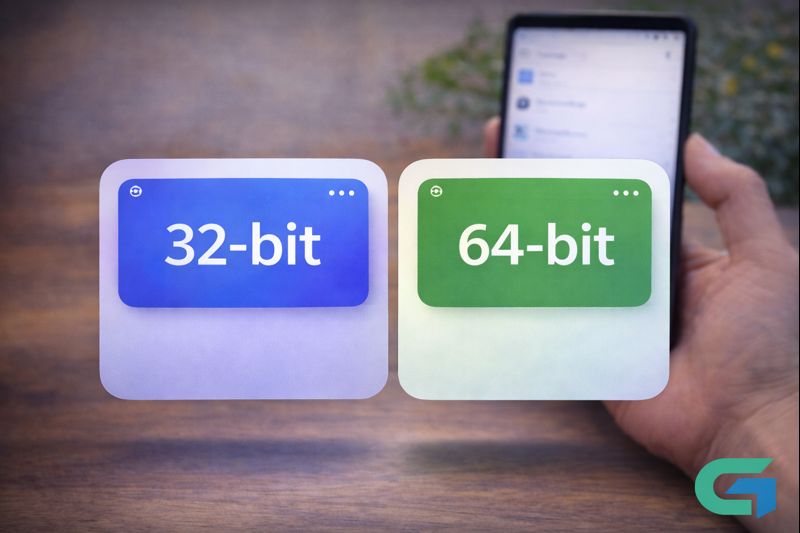
Before we dive into the checking process, it’s important to understand the difference between 32-bit and 64-bit systems. A 64-bit system can handle more data at once compared to a 32-bit system, leading to improved performance especially in tasks that require heavy processing. Most modern devices utilize a 64-bit architecture, but many older models still operate on 32-bit.
Steps to Check Android Architecture
There are several straightforward methods to determine if your Android device is 32-bit or 64-bit. Here’s how you can check:
Method 1: Using the Device Settings
- Open Settings: Unlock your device and navigate to the settings menu.
- About Phone: Scroll down and tap on “About phone” or “About device.”
- Software Information: Look for “Software information,” where you may find details about your device’s architecture. If it states “64-bit” or “32-bit,” that’s your answer.
Method 2: Utilizing Third-Party Apps
If your settings menu does not provide clear information, you can use third-party applications:
- Download an App: Find and install a system information app from the Google Play Store, such as CPU-Z or AIDA64.
- Open the App: Launch the app and navigate to the CPU or System tab.
- Check Architecture: Look for the version of the instruction set to see if it mentions ARMv7 (32-bit) or ARMv8 (64-bit).
Method 3: Via ADB Command
For those comfortable with technical methods:
- Enable Developer Options: Go to Settings > About Phone and tap on “Build number” multiple times until Developer options are enabled.
- Open ADB: Connect your device to a computer with ADB installed.
- Run Command: Open a command prompt and type
adb shell getprop ro.product.cpu.abi. The result will indicate whether it’s 32-bit or 64-bit based on the architecture listed.
Why It Matters
Knowing whether your device runs on 32-bit or 64-bit is important for choosing compatible applications. Some apps are designed for 64-bit architecture, which improves performance and speed. In contrast, 32-bit applications may work on any architecture but can be limited in performance capabilities.
Read also : Easily Find Devices Connected to Your WiFi with Your Smartphone
Conclusion
Checking if your device is running on 32-bit or 64-bit Android can be done easily through settings, apps, or ADB commands. Understanding this aspect of your device is crucial for optimizing app compatibility and enhancing performance.
FAQ
1. How can I check my Android device’s architecture?
You can check by going to Settings > About Phone or using apps like CPU-Z.
2. What is the difference between 32-bit and 64-bit?
A 64-bit system can process more data than a 32-bit system, improving performance.
3. Are all modern Android devices 64-bit?
Most modern devices are 64-bit, but older models may still be 32-bit.
4. Can I run 32-bit apps on a 64-bit device?
Yes, a 64-bit device is backward compatible with 32-bit apps.
5. How do I enable Developer Options?
Tap “Build number” in the About Phone section multiple times until Developer Options are enabled.
6. Why is it important to know my device’s architecture?
Knowing your device’s architecture helps you choose compatible and optimized applications.
7. Which apps should I use to find my device’s architecture?
You can use system information apps like CPU-Z or AIDA64 for accurate details.