4 Best Ways to Forget WiFi Networks in Windows 11
Forgetting a WiFi network in Windows 11 can enhance your device’s connectivity management, especially if you’ve changed passwords or switched to a new network. This guide presents the four most effective methods to forget WiFi networks seamlessly, ensuring that your device connects only to the networks you prefer.
Method 1: Forgetting a WiFi Network from Quick Settings
The quickest way to forget a WiFi network in Windows 11 is through the Quick Settings panel. Here’s how to do it:
- Access Quick Settings: Click on the network icon in the taskbar to open the Quick Settings menu.
- Select WiFi Settings: Click on the WiFi button to view available networks.
- Find the Network: Locate the WiFi network you want to forget.
- Forget the Network: Right-click on the network name, and select “Forget.”
This method is highly efficient for users who prefer a simple, graphical approach.
Method 2: Using the Settings App to Forget WiFi Networks
For a more detailed configuration, you can use the Settings app in Windows 11. Here’s how to proceed:
- Open the Settings Menu: Click on the Start button and choose Settings from the dropdown menu.
- Navigate to Network & Internet: In the Settings window, select Network & Internet.
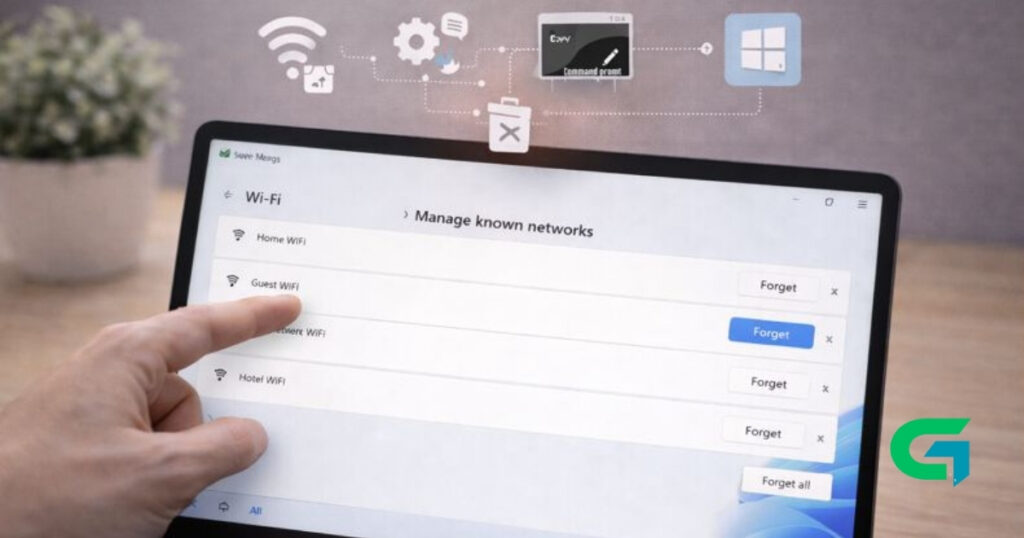
- Manage Your Networks: Click on WiFi, and then select Manage known networks.
- Forget the Desired Network: Find the network you wish to forget, then click on it, and choose Forget.
This method is ideal for users who want to oversee all their known WiFi networks in one place.
Method 3: Forgetting a WiFi Network via Registry Editor
For advanced users, the Registry Editor provides a way to manage WiFi profiles directly. Here’s the procedure:
- Open Registry Editor: Press Windows + R to open the Run dialog, type
regedit, and hit Enter. - Navigate to the Network Profiles: Go to
HKEY_LOCAL_MACHINE\SOFTWARE\Microsoft\Windows NT\CurrentVersion\NetworkList\Profiles. - Identify the Network: Browse through the profiles in the right pane to find the network you want to forget.
- Delete the Profile: Right-click on the network’s profile and select Delete.
Using the Registry Editor allows for direct control over network settings but should be done cautiously to avoid unwanted changes.
Method 4: Using Command Prompt to Forget WiFi Networks
The Command Prompt is a powerful tool for managing WiFi connections. Here’s how to forget a network through this method:
- Open Command Prompt: Press Windows + R, type
cmd, and hit Enter. - View Current Profiles: Enter the command
netsh wlan show profilesto see a list of all saved WiFi networks. - Forget the Selected Network: Use the command
netsh wlan delete profile name="network name"(replace"network name"with the actual network name).
This approach is particularly useful for users who prefer text-based commands and scripting.
Read also : How to Turn off Hard Disk After Idle Time in Windows 11
Forgetting a WiFi network in Windows 11 can be achieved through various methods, including using Quick Settings, the Settings app, Registry Editor, or Command Prompt. Each method offers a unique way to manage your network connections, allowing you to tailor your device’s preferences efficiently. Choose the one that best suits your comfort level and technical proficiency.
FAQ
1. How can I forget a WiFi network using Quick Settings in Windows 11?
Open Quick Settings by clicking the network icon on the taskbar, select the WiFi network, right-click, and choose “Forget.”
2. Where can I find the option to forget a WiFi network in the Settings app?
Go to Settings > Network & Internet > WiFi and click on “Manage known networks” to find and forget the network.
3. Is it safe to use the Registry Editor to delete WiFi profiles?
Yes, but proceed with caution. Unintended changes can affect system settings. Always back up the registry before making changes.
4. What command do I use in Command Prompt to forget a WiFi network?
Use the command netsh wlan delete profile name="network name" (replace “network name” with the actual network).
5. Can these methods be used for all WiFi networks?
Yes, you can use any of these methods to forget all known WiFi networks saved on your Windows 11 device.
6. Will forgetting a network remove all its settings?
Yes, forgetting a network deletes all saved connection settings, requiring you to re-enter the password to reconnect.
7. Are there any risks associated with forgetting a WiFi network?
Forgetting a network will prevent your device from reconnecting automatically; however, there are no security risks involved.