Summary
How to Find Devices Connected to WiFi Using a Smartphone
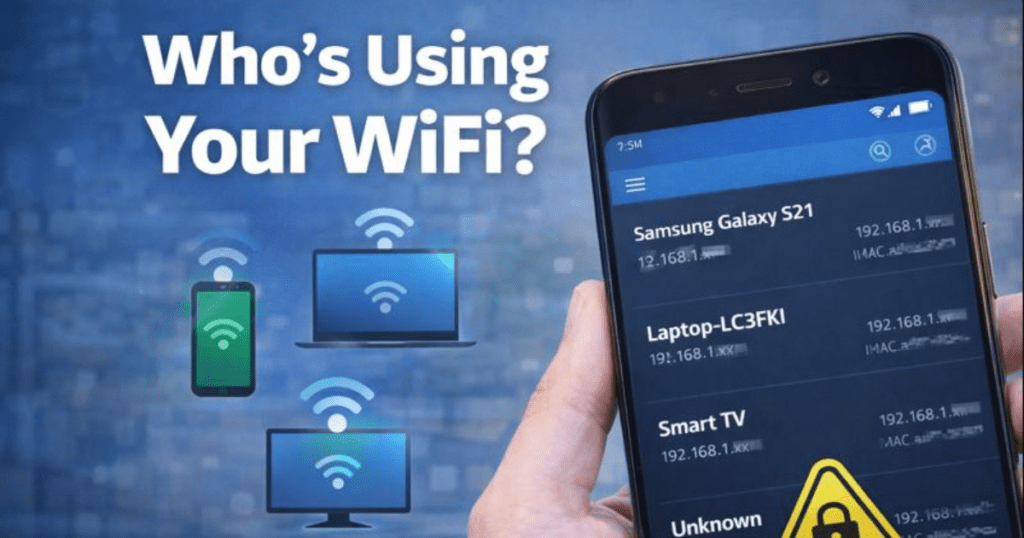
If your internet feels slow or you suspect someone is using your WiFi without permission, checking the devices connected to your network is essential. Fortunately, you don’t need a computer or router access—your smartphone alone is enough.
In this guide, we’ll show you how to find devices connected to your WiFi using Android or iPhone, using reliable and easy-to-use apps.
Why Should You Check Connected Devices?
Checking connected devices helps you:
- Detect unauthorized users
- Improve network speed
- Identify unknown devices
- Secure your WiFi network
Method 1: Find Connected Devices Using Fing (Android & iPhone)
Fing – Network Tools is one of the most popular WiFi scanner apps.
Steps:
- Download and install Fing – Network Tools from the Play Store or App Store.
- Open the app and allow the required permissions.
- Tap Scan for devices.
- Fing will display a list of all devices connected to your WiFi network.
- Tap on any device to see details like:
- Device name
- IP address
- MAC address
- Manufacturer
Fing works on both Android and iOS devices.
Method 2: Find WiFi Devices Using NetScan (Android)
NetScan is another powerful network scanning tool for Android.
Steps:
- Install NetScan from the Google Play Store.
- Open the app and grant permissions.
- Tap on Port Scan.
- The app will scan your network and list connected devices.
- Tap any device to view additional information.
This method is useful for users who want deeper network details.

Method 3: Scan Connected Devices on iPhone
iPhone users can also rely on Fing – Network Tools.
Steps:
- Install Fing – Network Tools from the App Store.
- Open the app and start scanning.
- View all devices connected to the same WiFi network.
- Check MAC addresses and device names.
You can later block unknown devices through your router settings.

Other Apps to Find Devices on Your WiFi
1. Who Is on My WiFi (Android)
- Simple interface
- Quickly detects connected devices
- Great for beginners
2. WiFi Warden (Android)
- Shows WiFi signal strength
- Displays connected devices
- Useful for network analysis
How to Block Unknown Devices
Once you identify an unfamiliar device:
- Copy its MAC address
- Log in to your router admin panel
- Block the device or change your WiFi password
This instantly secures your network.
Read Also : How to Set WiFi as Metered Connection on Android
Final Thoughts
Using your smartphone, you can easily find and monitor devices connected to your WiFi network. Apps like Fing, NetScan, and WiFi Warden make the process simple, even for beginners.
For more Android and networking guides, keep following GOATPG.