How to Enable File Compression on Windows 11
In today’s digital landscape, efficient storage management is essential for users of Windows 11. Enabling file compression can help you maximize your device’s storage capacity, making it a valuable skill for both casual users and professionals. This article will guide you through the process of enabling file compression on Windows 11, focusing on using NTFS compression and the Command Prompt.
Understanding NTFS File Compression
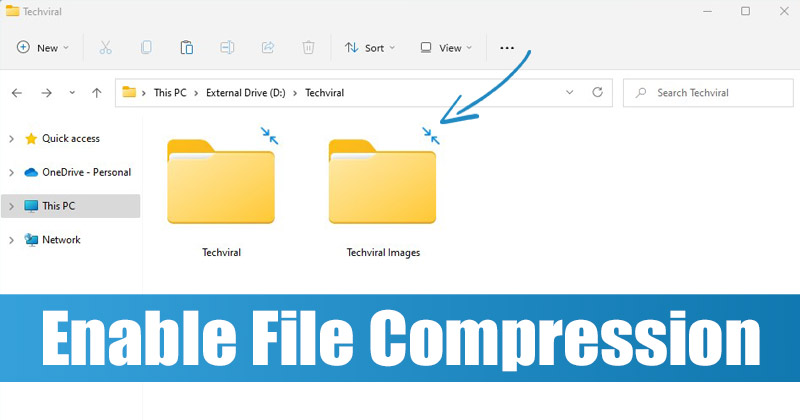
File compression significantly reduces the size of files by eliminating redundant data. Windows 11 utilizes NTFS (New Technology File System), which supports file compression natively. This feature is particularly beneficial for conserving hard drive space, especially when dealing with numerous small files or large datasets.
Benefits of File Compression
- Increased Storage Efficiency: Compressing files allows you to store more data on your drive without needing additional space.
- Improved System Performance: By freeing up disk space, you may notice improved performance, especially if your drive was nearing capacity.
- Convenience: Easily manage large files or collections without needing to invest in physical storage solutions.
Steps to Enable NTFS File Compression
Enabling NTFS file compression on Windows 11 can be accomplished efficiently using the Command Prompt. Below are detailed steps to get you started.
Using Command Prompt to Enable Compression
Open Command Prompt as Administrator:
- Type “Command Prompt” into the Windows Search bar.
- Right-click on the Command Prompt icon and select “Run as administrator.”
Enable File Compression:
In the Command Prompt window, type the following command:
fsutil behavior set disablecompression 0
After executing this command, you will receive a prompt indicating that a reboot is necessary for the changes to take effect. Restart your computer to apply the settings.
Disabling File Compression:
If you need to disable file compression in the future, you can execute this command instead:
fsutil behavior set disablecompression 1
Compressing Individual Files or Folders
After enabling file compression, you may want to compress specific files or folders:
Select the File or Folder:
- Right-click on the desired file or folder.
Access Properties:
- Select “Properties” from the context menu.
Advanced Attributes:
- In the Properties window, click on the “Advanced” button.
Enable Compression:
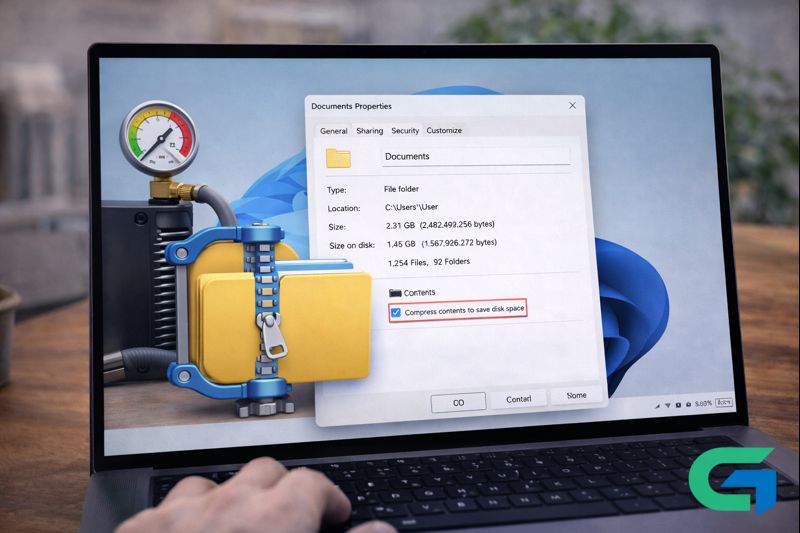
- Check the box for “Compress contents to save disk space,” then click “OK” and apply the changes.
Monitoring Changes and Storage Usage
Once you have set up file compression, you can monitor how much space is being saved:
- Right-click on the compressed file or folder and select “Properties.”
- You will be able to see the “Size on disk” and “Size” statistics. These figures will help you gauge the effectiveness of the compression.
Read also : Effective Guide to Using Disk Cleanup on Windows 11
Conclusion
Enabling file compression on Windows 11 is a straightforward process that can significantly optimize your storage management. By using NTFS compression via the Command Prompt, you can effectively save space on your hard drive, allowing for better performance and organization. With just a few simple steps, you can take control of your storage needs and ensure your files are handled more efficiently.
FAQ
1. What is NTFS file compression?
NTFS file compression reduces the size of files stored on NTFS-formatted drives, allowing for more efficient use of disk space.
2. How do I enable file compression on Windows 11?
You can enable file compression using the Command Prompt by executing specific commands.
3. Can I compress specific files or folders?
Yes, you can compress individual files or folders through their Properties menu by enabling the compression option.
4. What are the benefits of file compression?
The primary benefits include increased storage efficiency, improved system performance, and easier data management.
5. How can I check the space savings from compression?
You can check the space saved by viewing the properties of a compressed file or folder, comparing its size and size on disk.
6. Is file compression reversible?
Yes, file compression can be reversed. You can uncheck the compression option in the file’s Properties to return it to its original size.
7. Are there any risks associated with file compression?
While file compression is generally safe, it may lead to increased CPU usage when accessing compressed files.