
Learn how to fix the ‘D3D11 compatible GPU is required’ error with these step-by-step instructions to resolve your gaming issues on Windows.
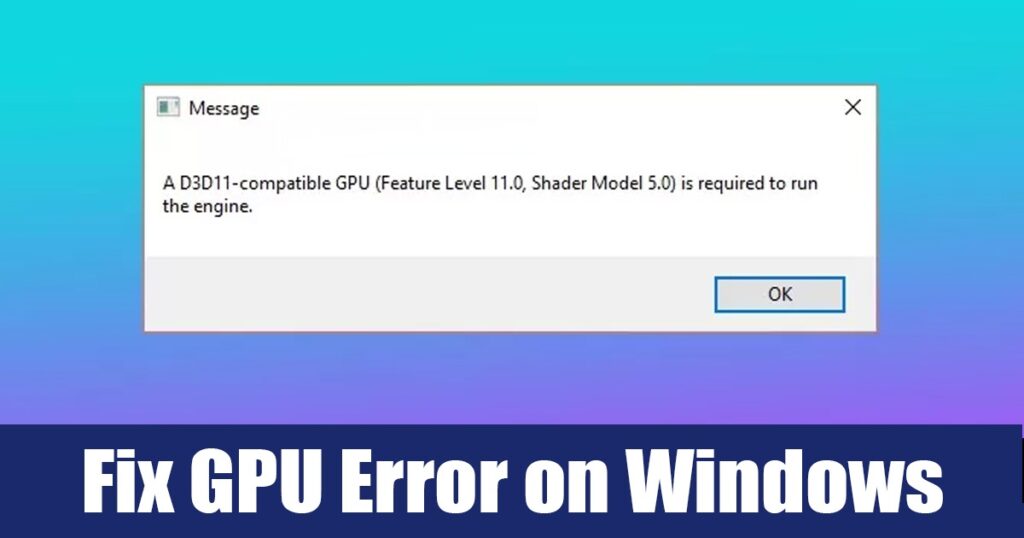
The ‘D3D11 compatible GPU is required’ error can be frustrating, especially when it prevents you from launching your favorite games. This error often occurs if you attempt to run a game that necessitates a graphics card that supports Direct3D 11, and your current graphics card does not meet these requirements. Fortunately, there are effective steps you can take to fix this error and ensure that your gaming experience is not interrupted.
How to Fix D3D11 Compatible GPU Error
To address this problem, you can follow a series of steps designed to update your system and drivers, repair essential components, and configure the game settings appropriately.
Requirements or Prerequisites
Before diving into the solutions, ensure you have:
- Access to a Windows PC.
- Administrative rights to perform system updates.
- An internet connection, if necessary for downloads.
How to Fix D3D11 Compatible GPU Error
Here, you will find detailed, step-by-step instructions for resolving the ‘D3D11 compatible GPU is required’ error.
Step 1: Install Pending Windows Updates
Keeping Windows up to date is crucial for maintaining compatibility with the latest DirectX versions.
- Click the Windows Start button and select Settings.
- Navigate to Windows Update.
- Click Check for Updates to see if there are any available.
- If updates are found, Windows will automatically download and install them.
Step 2: Update Your Graphics Card Driver
Outdated or corrupted graphics card drivers can lead to compatibility errors.
- Open Device Manager by searching for it in the Windows search bar.
- Expand the Display adapters section.
- Right-click on your graphics card and choose Update Driver.
- Select Search automatically for drivers to let Windows find and install the latest version.
Step 3: Repair the Visual C++ Redistributables
Corrupt or missing Microsoft Visual C++ Redistributable libraries can also lead to this error.
- Click the Windows Start button and select Settings.
- Go to the Apps section.
- Click on Installed apps.
- Find any Microsoft Visual C++ Redistributable, right-click, and select Modify.
- In the Modify Setup wizard, click the Repair button.
Step 4: Set the Game to Use Your GPU
If your PC has both integrated and dedicated graphics, ensure the game is using the dedicated graphics.
- Open Settings and switch to the System category.
- Click on Display.
- Scroll down and select Graphics.
- Find the problematic game, select it, and click Options.
- Choose High Performance in the Graphics preference settings.
Step 5: Download & Install DirectX Runtime Libraries
Installing DirectX Runtime Libraries can replace missing or corrupt DirectX files.
- Open your web browser and navigate to the DirectX download page.
- Download the dxwebsetup.exe file to your computer.
- Run the installer and accept the agreement by clicking Next.
- Uncheck any unwanted bundled software.
- Follow the on-screen instructions to complete the installation.
Step 6: Force DirectX 11 on Steam
If you’re encountering the error while using Steam, forcing DirectX 11 may help.
- Launch the Steam client and go to the Library tab.
- Right-click on the affected game and select Properties.
- In the General tab, find the Launch Options section, and type -dx11.
- Restart Steam and launch the game.
Step 7: Run the SFC Command
Running the System File Checker (SFC) can repair corrupted system files that may be causing the error.
- Open Command Prompt by searching for it and right-clicking to select Run as administrator.
- Type the command sfc /scannow and press Enter.
- Allow the scan to complete and follow any prompts to fix issues.
Common Problems and Fixes
When attempting to fix the ‘D3D11 compatible GPU’ error, you may encounter issues like:
- Installation errors: Ensure you have a stable internet connection while downloading updates.
- Driver update issues: In some cases, manually downloading drivers from the manufacturer’s website can help.
- SFC not fixing files: If the SFC command fails, consider running the DISM (Deployment Imaging Service and Management Tool).
Tips, Best Practices, and Warnings
- Always back up important data before performing major updates.
- Regularly check for Windows and driver updates to avoid compatibility issues.
- If you are unsure about modifying system settings, consult with a professional.
Read also : How to Manually Update Windows Security on Windows 11
In this guide, you learned how to fix the ‘D3D11 compatible GPU is required’ error through several effective steps, including updating system files, adjusting graphics settings, and installing necessary libraries. Following these instructions will help you enjoy your favorite games without interruptions. By maintaining your system’s graphics drivers and software, you can avoid this error in the future as well.




