Changing the system language in Windows 11 can make your computer easier to use, more comfortable to navigate, and better suited to your daily needs. Whether you’ve bought a new PC with the wrong default language, upgraded from an older version of Windows, or simply want to switch to a language you’re more familiar with, Windows 11 gives you full control over your language settings.
In this step-by-step guide, you’ll learn how to change the system language in Windows 11, install additional language packs, switch keyboard layouts, and prevent language settings from syncing across devices. The process is simple, doesn’t require technical expertise, and can be completed in just a few minutes using the built-in Settings app.
By the end of this article, you’ll have your Windows 11 system fully customized to your preferred language helping you work faster, avoid confusion, and enjoy a smoother overall experience.
If you’ve recently set up Windows 11 but have found that the system language is not to your preference, or perhaps the device you purchased came with the incorrect language installed, there’s good news. Changing the system language is a straightforward process that you can complete easily through the Settings app. Below, you’ll find a detailed guide on how to modify the system language in Windows 11.
Steps to Change the System Language
Accessing Settings
To begin, locate the Start button on your taskbar. Click on it and select Settings from the menu displayed. This action will open the Settings window, where you can make various adjustments to your system.
Navigate to Time & Language
In the Settings window, look for the option labeled Time & Language in the left-hand panel. Click on it to proceed.
Selecting Language & Region
Once you are in the Time & Language section, find and click on Language & Region. This area of the Settings will allow you to manage your installed languages and configure preferences.
Adding a New Language
To install a new language, click on the Add a Language button. A dialog box will pop up, prompting you to search for and select the language you’d like to install.
- Once you find the desired language, click Next.
- A new screen will appear with options to set it as your Windows display language. If you wish to make it the default, ensure you check the box for Set as my Windows display language before clicking Install.
Switching Keyboard Languages
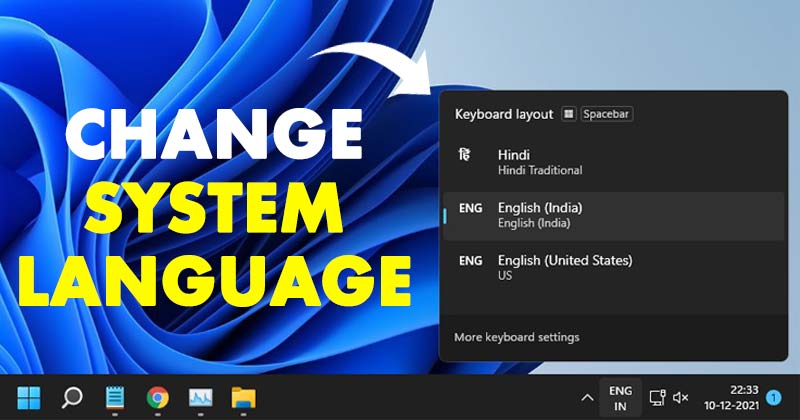
After installation, you may want to switch your keyboard layout to the new language. You can do this quickly by clicking on the language icon located at the bottom right corner of your taskbar. Select the language you wish to use for typing.
Setting a Default Language
To make the newly installed language the default for your Windows environment, revisit the Settings > Time & Language > Language & Region menu. Here, find the Sign-out button. Clicking it will log you out, and when you log back in, the system will display in the new language you have selected.
Disabling Language Sync with Microsoft Account
If you own multiple devices and prefer different languages for each, you may want to disable language syncing with your Microsoft account. Here’s how you can do that:
- Open the Settings app.
- Select the Accounts option from the sidebar.
- Click on Windows Backup.
- Expand the Remember My Preferences section.
- Uncheck the option for Language preferences and dictionary.
By following these steps, your language settings on different devices will remain distinct, allowing for a more customized experience.
Read also : How to Block Websites Using Firewall on Windows 11 (No Software Required)
Conclusion
Changing the system language on Windows 11 is a simple process that can enhance your user experience significantly. By following the outlined steps, you can easily adjust the language settings to better suit your preferences. Whether you’re setting up a new device or correcting an oversight, navigating through the Settings application allows for a flexible and user-friendly approach to managing system languages. If you encounter any issues, do not hesitate to explore the support options available in Windows or seek assistance from community forums.
FAQ: Change the System Language in Windows 11
1- How do I change the system language in Windows 11?
Go to Settings > Time & language > Language & region, click Add a language, install your preferred language pack, then set it as the Windows display language and sign out (or restart) to apply it.
2- Why doesn’t the Windows 11 language change immediately?
In many cases, Windows needs you to sign out and sign back in (or restart) before the new display language appears across the system.
3- Can I change the display language without a Microsoft account?
Yes. You can change the system language in Windows 11 using a local account as long as you can download and install the language pack.
4- How do I change the keyboard language in Windows 11?
Click the language indicator on the taskbar (e.g., ENG/FR) or press Windows + Space to switch keyboard layouts quickly.
5- Why is the language changing on my other devices too?
Your Microsoft account may be syncing language preferences. Disable it via Settings > Accounts > Windows backup > Remember my preferences, then turn off Language preferences and dictionary.
6- Can I remove a language after installing it?
Yes. Go to Settings > Time & language > Language & region, select the language under Preferred languages, then choose Remove (some system languages may require another display language to be set first).
7- What if my language pack won’t download or install?
Check your internet connection, run Windows Update, and ensure your device has enough storage. If it still fails, restart and try installing the language again from Language & region.