Summary
How to Fix Can’t Uninstall Unknown Apps on Windows 11
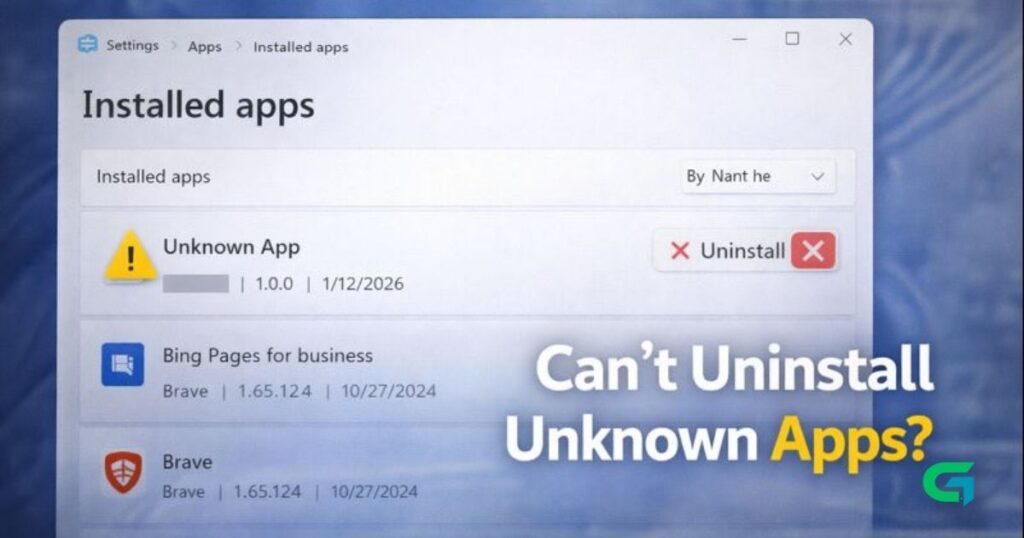
If you notice unknown apps in the Installed Apps list on Windows 11 and can’t uninstall them, you should act quickly. In many cases, this issue is linked to malware, adware, or corrupted system files.
In this guide, we’ll show you effective methods to fix “can’t uninstall unknown apps on Windows 11” safely and step by step.
Why Can’t You Uninstall Unknown Apps?
Common reasons include:
- Malware or unwanted software
- Background processes locking the app
- Corrupted system files
- Rootkits or hidden services
- App permission issues
Method 1: Restart Your Windows 11 PC
Sometimes, the app you’re trying to uninstall is running hidden background processes.
- Restart your PC
- Try uninstalling the app again after reboot
This simple step often fixes temporary lock issues.
Method 2: Uninstall the App from Control Panel
If uninstalling from Settings → Apps → Installed apps fails, try the Control Panel.
Steps:
- Search for Control Panel and open it.
- Click Programs.
- Select Programs and Features.
- Right-click the unknown app and choose Uninstall.
Method 3: Run a Full Scan with Windows Security
Windows Security can detect and remove many threats.
Steps:
- Open Windows Security.
- Go to Virus & Threat Protection.
- Click Scan options.
- Select Full Scan.
- Click Scan now.
⏳ This scan may take over an hour but is very effective.
Method 4: Run a Full Scan with Malwarebytes
For deeper detection, Malwarebytes is highly recommended.
Steps:
- Download and install Malwarebytes.
- Open the app and go to the Dashboard.
- Click Scan.
- Wait for the scan to complete and remove detected threats.
Method 5: Run a Rootkit Scan (Advanced)
Rootkits can prevent apps from being removed.
Steps:
- Open Malwarebytes.
- Go to Settings → Scan and Detections.
- Enable Scan for rootkits.
- Return to the Dashboard and click Scan.
Once complete, try uninstalling the app again.
Method 6: Run SFC and DISM Commands
Corrupted system files can block uninstallation.
Steps:
- Search for CMD.
- Right-click and select Run as administrator.
- Run:
sfc /scannow
If issues persist, run:
DISM /Online /Cleanup-Image /CheckHealth
DISM /Online /Cleanup-Image /ScanHealth
DISM /Online /Cleanup-Image /RestoreHealth
Restart your PC after completion.
Method 7: Clean Boot Windows 11 and Remove the App
A clean boot prevents third-party services from interfering.
Steps:
- Press Windows + R, type
msconfig, and press Enter. - Go to Services.
- Check Hide all Microsoft services.
- Click Disable all.
- Open Task Manager → Startup and disable all startup apps.
- Restart your PC.
- Uninstall the app from Control Panel.
- Re-enable services after removal.
Method 8: Use Third-Party Uninstaller Tools
Third-party uninstallers can:
- Detect locked files
- Remove leftover registry entries
- Fully clean stubborn apps
These tools are useful when built-in methods fail.
Read Also : How to Enable Energy Saver Mode on Windows 11
Final Thoughts
Unknown apps that can’t be uninstalled often indicate deeper system issues or malware. By following the methods above, you can safely remove such apps and protect your Windows 11 PC.
For more Windows security and troubleshooting guides, visit GOATPG.