
How to Hide Files in Windows 11 (Without Any Software)
If you’re wondering how to hide files in Windows 11 without installing extra apps, you’re in luck. Windows 11 includes built-in options that let you hide sensitive files and folders quickly and easily. These methods are ideal for keeping private documents out of sight from casual users while maintaining full access for yourself.
Below are the most effective ways to hide, view, and unhide files using native Windows features.
Hide Files and Folders Using File Explorer
File Explorer offers the simplest way to hide files in Windows 11 without any third-party software.
Steps to hide files using File Explorer:
- Press Windows + E to open File Explorer
- Navigate to the file or folder you want to hide
- Right-click the item and select Properties
- Under the General tab, check Hidden
- Click Apply, then OK
- If prompted, choose whether to apply changes to subfolders and files
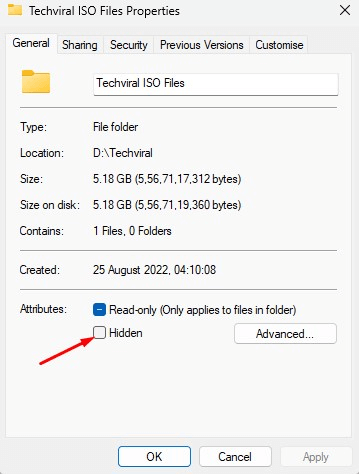
Once completed, the selected file or folder will no longer be visible by default.
How to View Hidden Files in Windows 11
Hidden files don’t disappear permanently you just need to enable their visibility.
Steps to view hidden files:
- Open File Explorer
- Click View in the top menu
- Select Show > Hidden items
- Navigate back to the folder
Hidden files will now appear slightly transparent. To hide them again, simply turn off Hidden items.
How to Unhide Files and Folders in Windows 11
If you want a hidden file to appear normally again, you’ll need to remove the hidden attribute.
Steps to unhide files:
- Open File Explorer
- Go to the location of the hidden file or folder
- Right-click it and select Properties
- Under the General tab, uncheck Hidden
- Click Apply, then OK
- Apply changes to subfolders if prompted
After this, the file will remain visible even when hidden items are turned off.
Hide Files in Windows 11 Using Command Prompt
For users who prefer advanced tools, Command Prompt provides another way to hide files without software.
Steps to hide a file using Command Prompt:
- Search for Command Prompt, right-click it, and choose Run as administrator
- Enter the following command:
attrib +h "full path of file" - Replace the path with the actual file or folder location
The file will be hidden immediately.
To unhide the file:
attrib -s -h "full path of file"
This removes the hidden and system attributes, making the file visible again.
Is Hiding Files Secure?
Hiding files in Windows 11 is useful for privacy but not for strong security. Anyone who knows how to enable hidden items can view them. For stronger protection, encryption or password-protected folders are recommended.
Read also : How to Add and Switch Keyboard Layouts in Windows 11
Understanding how to hide files in Windows 11 gives you a simple way to keep personal data out of sight without installing any software. Whether you use File Explorer or Command Prompt, Windows makes file hiding quick and accessible. For everyday privacy needs, these built-in tools are more than enough.
FAQ
Can I hide files in Windows 11 without installing apps?
Yes, Windows 11 allows file hiding using File Explorer and Command Prompt.
Are hidden files completely secure?
No, hidden files can still be viewed by enabling hidden items in File Explorer.
How do I view hidden files again?
Open File Explorer, click View, then enable Hidden items.
Can I hide entire folders?
Yes, folders and all their subfolders can be hidden using the same steps.
Does hiding files affect system performance?
No, hiding files has no impact on performance.
Can hidden files be accessed by other users?
Yes, if they know how to enable hidden file viewing.
What’s better for privacy than hiding files?
Encryption or password-protected folders provide stronger protection.




