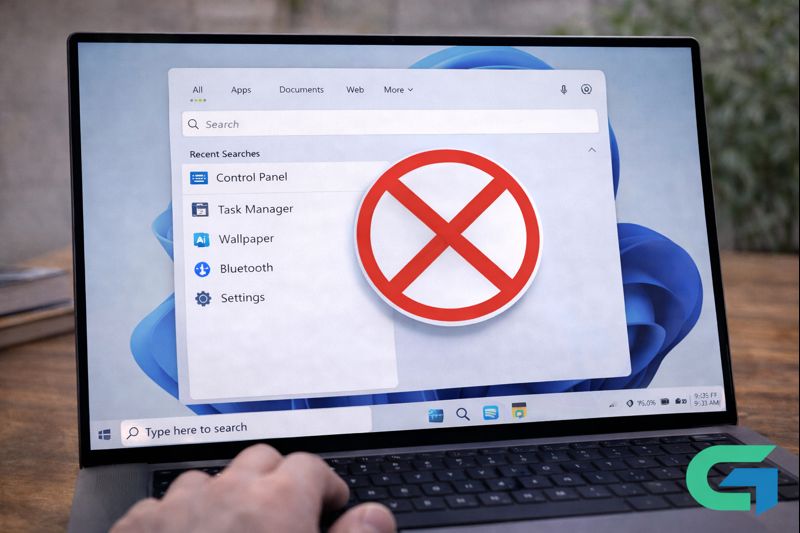
How to Disable Recent Searches on Windows 11: A Simple Guide
In Windows 11, the ability to access and view recent searches can be convenient but raises privacy concerns, particularly if multiple users share the same PC. If you’re looking to disable recent searches on your Windows 11 device, this guide will provide you with clear, step-by-step instructions for managing your search history and settings effectively.
Understanding the Recent Searches Feature
The recent searches functionality in Windows 11 allows users to quickly revisit previous queries by hovering over the search icon in the Taskbar. While this feature can enhance user experience, it may expose sensitive information if others have access to your device. Therefore, it becomes essential to know how to turn off and manage this feature.
Steps to Disable Recent Searches in Windows 11
Follow these straightforward steps to disable recent searches from the Windows search menu:
Open the Settings App: Click the Start button and select Settings from the menu.
Navigate to Privacy & Security: Within the settings window, click on Privacy & Security.
Access Search Permissions: Scroll down and choose Search permissions from the options presented.
Turn Off Search History: Locate the History section and toggle off the option for Search history on this device.
Clear Current Search History: To remove past searches, click on Clear device search history within the same section. This action will delete your existing search records.
By following these steps, you will effectively disable the search history feature from displaying your recent searches on Windows 11.
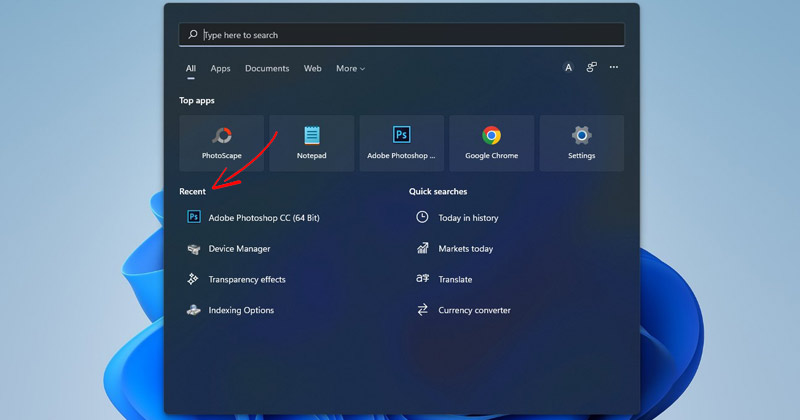
Disabling Recent Search Icon History
If you wish to remove the recent searches that appear when you hover over the search icon on the Taskbar, you can do so with these simple steps:
Open Settings Again: Start by clicking the Windows 11 Start menu and selecting Settings.
Go to Personalization: Click on the Personalization tab.
Adjust Taskbar Behaviors: Scroll down to select Taskbar behaviors.
Uncheck Search Hover Option: Find the option titled Show recent searches when I hover over the search icon and uncheck it.
This change will ensure that no recent searches appear when you hover over the search icon on your Taskbar.
How to Clear Existing Search History
Even after disabling the search history, you may still want to ensure that previously saved searches are removed. Follow these steps to clear your existing search history:
Open Settings: Launch the Settings application on your Windows 11 device.
Access Privacy & Security: Click on Privacy & Security.
Navigate to Search Permissions: Scroll down to find Search permissions and click on it.
Clear Device Search History: In the History section, select Clear device search history to eliminate all saved searches.
After performing these actions, if the search history still appears, consider restarting your computer to ensure all changes take effect.
Read also : Enable File Compression on Windows 11: A Step-by-Step Guide
Conclusion
Disabling recent searches in Windows 11 is a simple process that enhances your privacy and safeguards your previous search queries. By following the steps outlined in this guide, you can easily manage your search settings and ensure that your search history remains confidential. No one else using your device will have access to your past search activities.
FAQ
1. How do I disable recent searches on Windows 11?
You can disable recent searches by going to Settings > Privacy & Security > Search permissions, and toggling off Search history on this device.
2. Can I clear my search history on Windows 11?
Yes, you can clear your search history by navigating to Settings > Privacy & Security > Search permissions, and selecting Clear device search history.
3. Does disabling search history affect my search functionality?
No, disabling search history will not affect your ability to search; it simply prevents previous searches from being displayed.
4. How do I stop recent searches from appearing on the Taskbar?
To stop recent searches from appearing on the Taskbar icon, go to Settings > Personalization > Taskbar behaviors, and uncheck the option for Show recent searches when I hover over the search icon.
5. Can I recover my search history after clearing it?
Once you clear your search history, it cannot be recovered.
6. Will my search settings be applied to other users on the same device?
No, individual user settings are specific to each account on the device.
7. What should I do if search history still appears after disabling it?
If your search history still appears, try restarting your computer to apply the changes fully.