How To Find Devices Connected To Your WiFi Using Your Smartphone
In today’s digital world, managing your WiFi network is crucial. Understanding how to find devices connected to your WiFi using a smartphone can enhance security and improve network performance. This guide will walk you through effective methods and applications you can use to quickly identify all devices sharing your network.
Understanding the Importance of Monitoring Your WiFi Network
Maintaining an overview of the devices connected to your WiFi network is essential for multiple reasons. It helps you ensure network security, manage bandwidth, and detect unauthorized devices that may be compromising your privacy. Regularly checking connected devices can help optimize your network accordingly.
Method 1: Using Fing – Network Tools
Fing is a comprehensive network analysis tool widely used on Android devices. Follow these steps to utilize Fing for discovering connected devices:
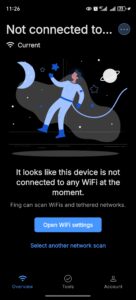
Download and Install: Locate Fing – Network Tools on the Google Play Store and download it to your smartphone.
Launch the App: Open Fing and allow the required permissions to access your local network.
Scan for Devices: Initiate a scan to discover all devices currently connected to your WiFi.
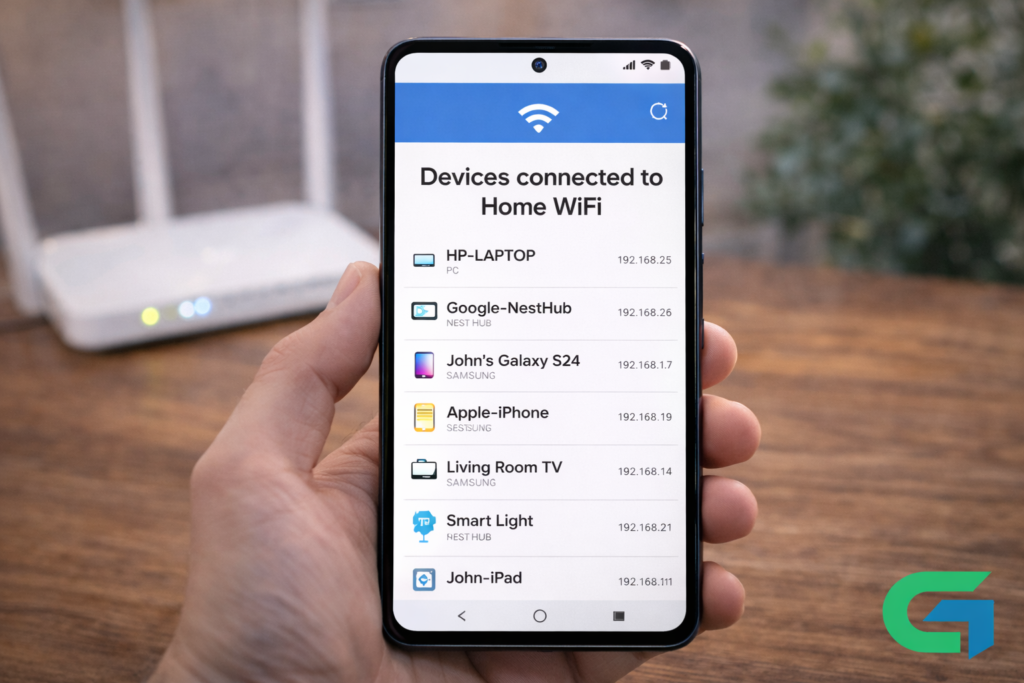
View Device List: Fing will present a list of connected devices. You can tap on any device to view detailed information, including its IP address and MAC address.
Method 2: Using NetScan for Device Discovery
NetScan is another excellent tool for identifying connected devices, particularly because it scans ports for active connections. Here’s how to utilize it:
Download from Google Play: Access the Google Play Store and install NetScan.
Grant Permissions: Open the application and provide the necessary permissions for a thorough scan.
Port Scanning: Navigate to the Port Scan feature to start scanning for connected devices.
Analyze Results: Once the scan is complete, you will see a list of detected devices. Tap on any device for a brief overview, including connection details.
Method 3: Scanning Connected Devices on iPhone
For iPhone users, Fing is also available, making it easy to check connected devices.
Install Fing: Download and install Fing – Network Tools from the App Store.
Run a Network Scan: Open the app and scan the WiFi network to identify all connected devices.
Review Device Information: You’ll receive a displayed list of devices currently using your network, along with options to view MAC addresses and other details.
Additional Apps to Consider
In addition to Fing and NetScan, there are several other applications that can assist you in monitoring your WiFi network:
Who is on my WiFi: This app offers a user-friendly interface that effectively scans for devices connected to your WiFi.
WiFi Warden: This tool not only identifies connected devices but also assesses WiFi signal strength, providing additional insights into your network’s performance.
Read also : How to Fake Your GPS Location on Android
Conclusion
Understanding how to find devices connected to your WiFi using your smartphone is an essential skill for maintaining network security and performance. By utilizing applications like Fing and NetScan, you can efficiently manage your network and ensure only authorized devices are connected. Regular monitoring can lead to a more secure and optimal WiFi experience, safeguarding your personal information and enhancing your internet usage.