How to Disable Windows Defender SmartScreen on Windows 11
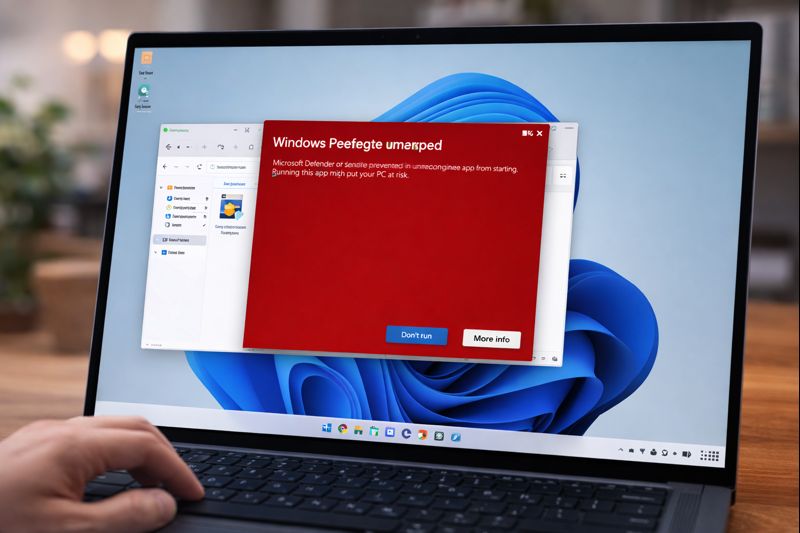
Windows Defender SmartScreen is a built-in security feature in Windows 11 designed to protect users from malicious downloads and harmful apps. It scans files against a Microsoft database to ensure safety before they run. While this feature enhances security, it can occasionally prevent trusted applications from launching, leading users to repeatedly click through prompts to proceed.
If you find SmartScreen is too restrictive for your needs or want to disable it for an improved workflow, there are several methods to do so. This article will guide you through these approaches step-by-step.
Disabling SmartScreen via Windows Security
The simplest way to disable Windows Defender SmartScreen is through the Windows Security app. Here’s how:
Open Windows Security: Click on the Start menu and type “Windows Security” to find and launch the app.
Navigate to Apps & Browser Control: In the Windows Security dashboard, select Apps & Browser control.
Adjust Reputation-Based Protection Settings: Scroll down and click on the Reputation-based protection settings link.
Toggle Off Check Apps and Files: Turn off the toggle for Check apps and files and confirm the change by accepting the User Account Control (UAC) prompt.
Once this is done, SmartScreen will no longer scan your apps and files.
Disabling SmartScreen for Microsoft Edge
If you primarily use Microsoft Edge, you might want to disable SmartScreen specifically for that browser. Follow these steps:
Go to Windows Security: Open the Windows Security app.
Access App & Browser Control: Click on Apps & browser control.
Update SmartScreen Settings: Click on the Reputation-based protection settings link and toggle off the option for SmartScreen for Microsoft Edge.
This stops SmartScreen from checking downloads within Edge, providing a smoother browsing experience.
Disabling SmartScreen via Registry Editor
If you cannot access Windows Security, the Registry Editor is an alternative method. Here’s how:
Open the Run Dialog: Press Windows + R to open the Run dialog. Type
regeditand hit Enter.Navigate to the Relevant Path: Go to HKEY_LOCAL_MACHINE\SOFTWARE\Policies\Microsoft\Windows\System.
Create a New Value: Right-click on the System folder, select New > DWORD (32-bit) Value, and name it EnableSmartScreen.
Set the Value: Double-click EnableSmartScreen, set the Value data to
0, and click OK.
After completing these steps, restart your computer to apply changes.
Disabling SmartScreen via Group Policy Editor
For users on Windows 11 Pro or Enterprise editions, Group Policy Editor offers another way to disable SmartScreen:
Open the Run Dialog: Press Windows + R and type
gpedit.msc, then hit Enter.Navigate to File Explorer Policies: Follow this path: Computer Configuration > Administrative Templates > Windows Components > File Explorer.
Disable SmartScreen Policy: Find and double-click Configure Windows Defender SmartScreen Policy, select Disabled, and click Apply.
After applying the settings, restart your PC.
Using Internet Properties in Older Builds
If you are on an older build of Windows 11, you have the option to disable SmartScreen via Internet Properties:
Open the Run Dialog: Press Windows + R and type
Control Panelto open.Access Internet Options: Go to Network and Internet > Internet Options.
Adjust Advanced Settings: In the Internet Properties window, navigate to the Advanced tab, scroll to the Security section, and uncheck Enable Windows Defender SmartScreen. Click Apply and then OK.
Read also : Change the System Language in Windows 11: Easy Step-by-Step Guide
Conclusion
Disabling Windows Defender SmartScreen on your Windows 11 device can help streamline your workflow, especially if you frequently encounter false positives from trusted applications. However, it’s crucial to maintain your computer’s security by using other protective software.
With these methods outlined, you can easily disable SmartScreen according to your preferences while keeping an eye on your system’s safety.
FAQ
1. What is Windows Defender SmartScreen?
Windows Defender SmartScreen is a feature that protects users from malicious downloads and harmful apps by checking files against a Microsoft database.
2. Why would I want to disable SmartScreen?
Users may choose to disable SmartScreen to prevent constant prompts when attempting to run trusted applications.
3. Can I disable SmartScreen for just one specific app?
No, SmartScreen settings are applied system-wide and cannot be selectively disabled for individual apps.
4. Is it safe to disable SmartScreen?
While you can disable it, be cautious as it removes a layer of security. Ensure you have other protection mechanisms in place.
5. How do I enable SmartScreen again after disabling it?
To re-enable SmartScreen, follow the same method used to disable it and turn the settings back on.
6. Can I use other security programs if I disable SmartScreen?
Yes, using other reliable security solutions is advisable when SmartScreen is turned off.
7. Do I need to restart my PC after changing SmartScreen settings?
In most cases, a restart is necessary to apply the changes effectively.