Blocking websites on Windows 11 doesn’t always require browser extensions or third-party software. If you want a system-wide solution that works across all browsers and applications, Windows Defender Firewall can do the job effectively.
In this guide, you’ll learn how to block any website on Windows 11 using the built-in firewall—step by step.
Step 1: Find the Website’s IP Address
Windows Firewall blocks traffic using IP addresses, so the first step is to identify the IP address of the website you want to block.
How to find a website IP:
- Open a web browser and visit IPVOID or any similar IP lookup service.
- Enter the website domain (for example:
example.com). - Click Find Website IP.
- Copy and save all listed IP addresses.
⚠️ Some websites use multiple IPs. Make sure to note all of them.
Step 2: Create a Firewall Rule to Block the Website
Once you have the IP address, you can block it using Windows Defender Firewall.
Create an outbound firewall rule:
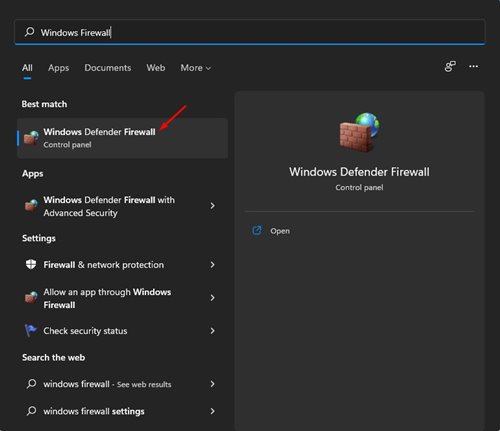
- Press Windows + S, search for Windows Defender Firewall, and open it.
- Click Advanced settings from the left panel.
- Select Outbound Rules.
- Click New Rule… on the right.
- Choose Custom and click Next.
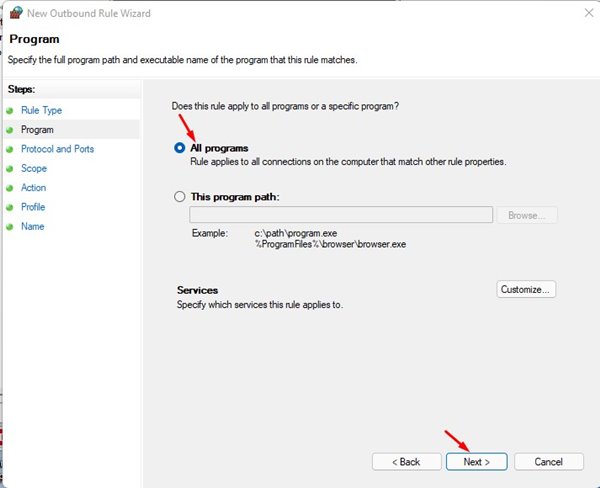
- Select All programs, then click Next.
- Leave Protocol and Ports unchanged → click Next.
- Under Remote IP address, select These IP addresses.
- Click Add, then paste the IP address(es) you copied earlier.
- Click Next.
- Choose Block the connection → click Next.
- Check Domain, Private, and Public profiles → click Next.
- Give the rule a name (e.g., Block Example Website) and click Finish.
✅ The website is now blocked system-wide.
Step 3: Test the Blocked Website
Open any browser and try accessing the blocked site.
You should see a connection error or a “site can’t be reached” message.
How to Disable or Remove the Firewall Rule
If you want to unblock the website later:
- Open Windows Defender Firewall → Advanced settings.
- Go to Outbound Rules.
- Find your custom rule.
- Right-click it and choose Disable Rule or Delete.
That’s it — access will be restored immediately.
Other Ways to Block Websites on Windows 11
If firewall blocking feels too advanced, here are alternative options:
🔹 Browser Extensions
For Chrome and Edge users:
- Block Site
- StayFocusd
- LeechBlock
These are ideal for blocking distracting sites during work hours.
🔹 Hosts File Method
You can also block websites by editing the hosts file, which redirects domains to a local address. This method is simple but easier to bypass than firewall rules.
Read also : How to Fix Can’t Uninstall Unknown Apps on Windows 11
Final Thoughts
Blocking websites using Windows Defender Firewall may look complex at first, but it’s one of the most effective and permanent methods available on Windows 11—no extra software required.
This approach is perfect for:
- Parental control
- Workplace focus
- System-wide restrictions
If you have questions or run into issues, feel free to ask in the comments.