Summary
How to Cut Videos Using VLC Media Player in Windows
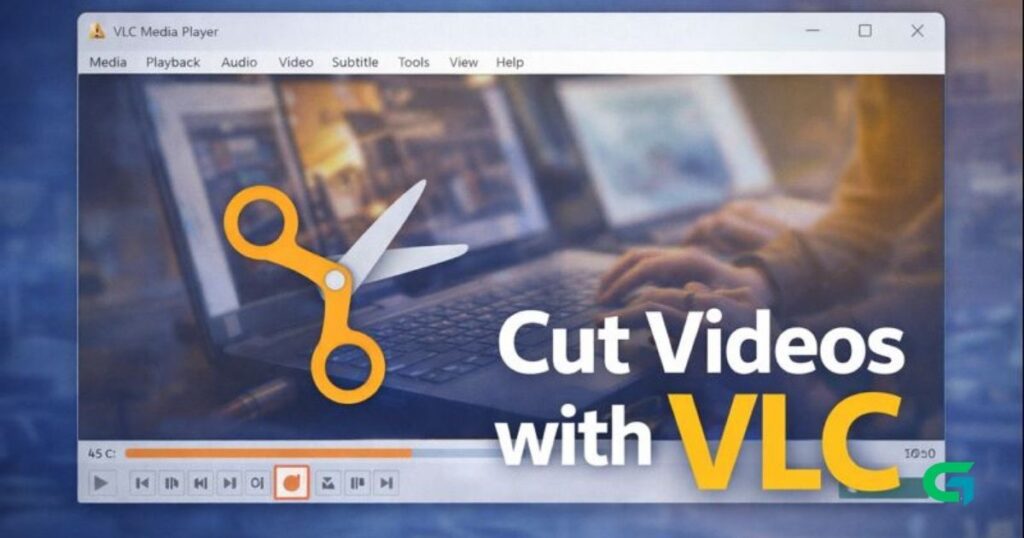
You don’t always need professional video editing software to trim a video. If you already have VLC Media Player installed on your Windows PC, you can use it to cut video clips easily using its built-in recording feature.
In this guide, you’ll learn how to cut videos using VLC Media Player on Windows, step by step.
Can VLC Media Player Cut Videos?
Yes. While VLC is primarily a media player, it includes a recording feature that allows you to capture and save specific parts of a video without installing additional software.
How to Cut Videos Using VLC Media Player (Windows)
Follow these simple steps:
Step 1: Open VLC Media Player
Launch VLC Media Player on your Windows PC.
Step 2: Open the Video File
Click Media → Open File and select the video you want to cut.
Step 3: Enable Advanced Controls
- Click the View tab.
- Select Advanced Controls.
You’ll now see extra buttons above the playback controls, including the Record button.
Step 4: Start Recording the Video Segment
- Play the video.
- Pause it at the exact point where you want the clip to start.
- Move the slider if needed.
- Click the Record button to begin recording.
Step 5: Stop Recording
When the desired clip ends:
- Click the Record button again to stop recording.
Step 6: Locate the Saved Clip
The trimmed video clip will be automatically saved in the Videos folder on your PC.
Important Note
- Older versions of VLC do not include the recording feature.
- If you don’t see the Record button, update VLC to the latest version.
Other Ways to Cut Videos on Windows
While VLC is useful for quick trimming, it’s not a full video editor.
Alternative options:
- Dedicated video editing software
- Online video editors (no installation required)
- Built-in editors available in some Windows versions
For advanced editing, a proper video editor is recommended.
Read Also : How to Stop Apps from Using Your Webcam on Windows 11
Final Thoughts
VLC Media Player offers a quick and simple way to cut video clips on Windows without installing extra tools. It’s perfect for basic trimming tasks and quick edits.
For more Windows tutorials and tech guides, visit GOATPG.